|
Need more info or you couldn't find what you were looking for, let us know by sending an email to: support@dancik.com.
Using General Ledger Drilldown
Creating a General Ledger Drill Down Spreadsheet
This web based application, available as part of Dancik Navigator, presents a drilldown into GL information. The GUI display can be configured to show information in several combinations. For example, a report can be run by Category (assets, expenses, liabilities, etc.), Branch, and Cost Center.
Within the drilldown results, values can be selected to display the Journal Entries that made up the value. Within the Journal Entries, Accounts Payable History is accessible.
There is also an option to submit drilldown selections to a spreadsheet.
Note: GL Drilldown is designed to be used with the Internet Explorer browser. If you are using another browser (i.e., Firefox), the application’s processes and results can be erratic.
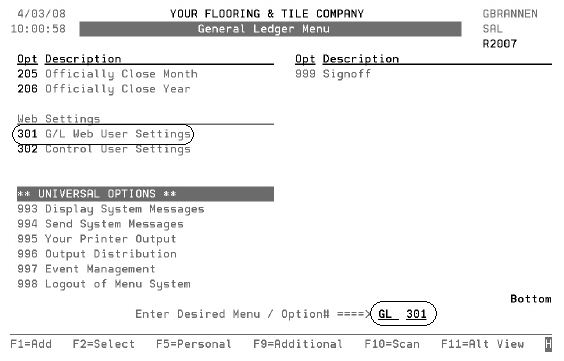
1. On the core system, go into the General Ledger Menu (GL) and select option 301 - G/L Web User Settings.
|
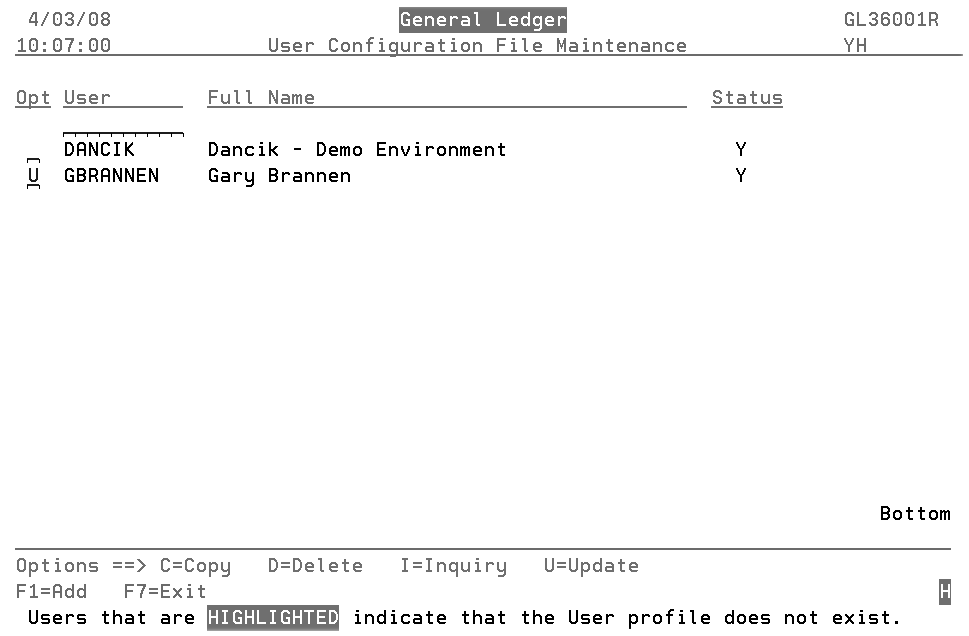
2. On the screen that appears, select a User and press Enter.
|
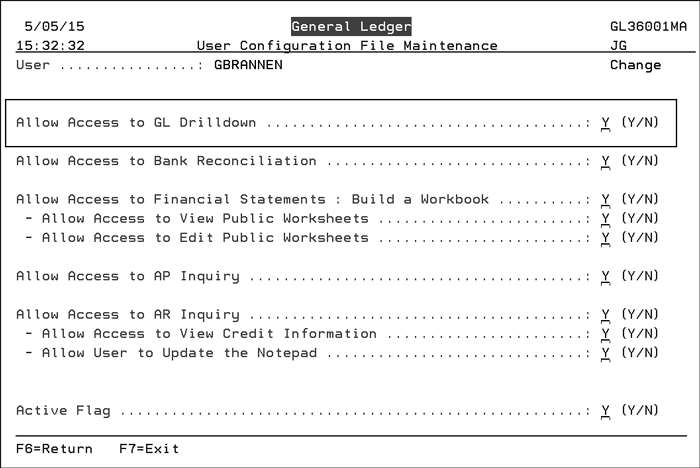
3. On the User Configuration File Maintenance screen that appears, ensure the user is configured to access GL Drilldown and is still active.
Using General Ledger Drilldown
1. To begin, click General Ledger Drilldown under Accounting on the Navigator menu. The GL Drilldown screen appears.
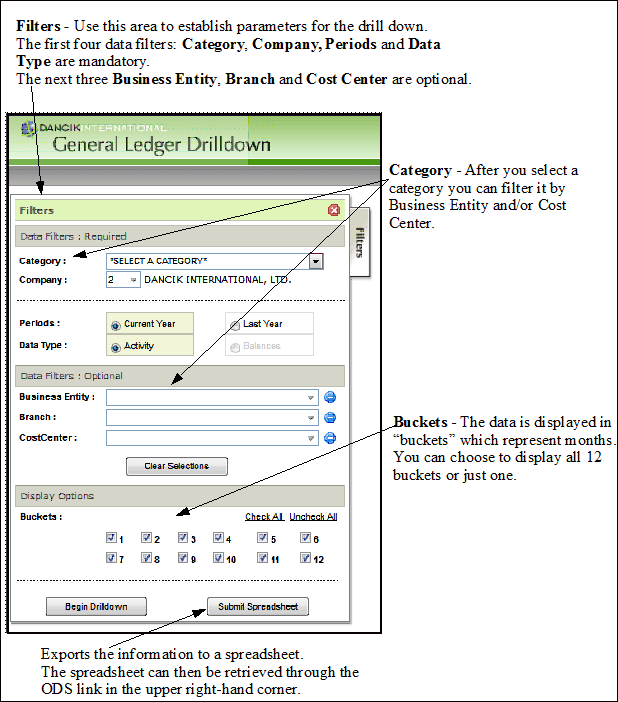
2. Enter the required filtering parameters and click Begin Drilldown. The results appear.
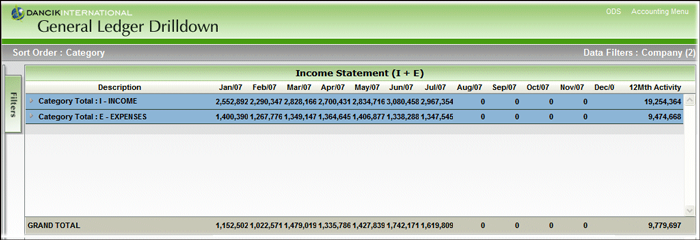
3. To drill down into an entry, click the arrow to the left of the Description. Several sorting levels appear.
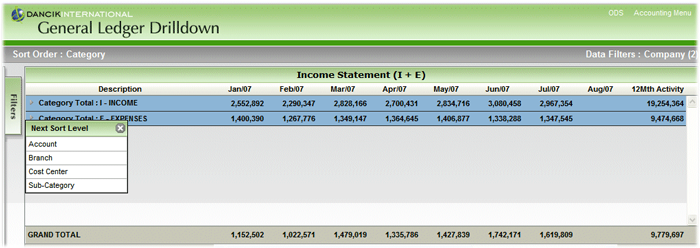
Note: The categories are Balance Sheet or Income Statement selections only. For example, you can select only expenses, or only liabilities or all categories for Balance Sheet items.
Note: Sub-Categories, one of the drilldown options, are created through option 119 - G/L Account Sub-Categories File on the Accounting / File Maintenance Menu (ACT). They are then assigned via ACT 7 - Chart Of Accounts File.
4. Click the next sorting level you want to use. The screen refreshes to display the drill down information.
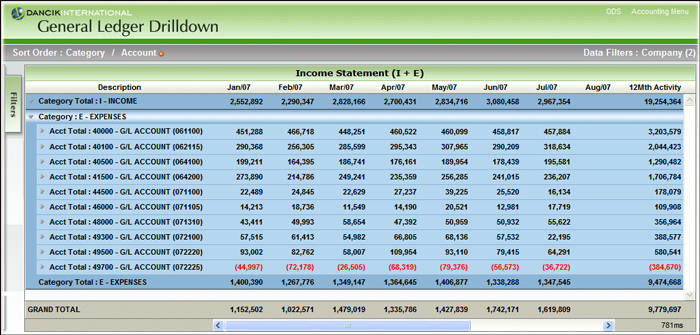
Note: To access this type of information within the Core System, use option GL 108 - Income & Expense Spreadsheets.
5. All of the monthly numbers are linked to their respective Journal Entries. Simply click on a number to access its Journal Entries.
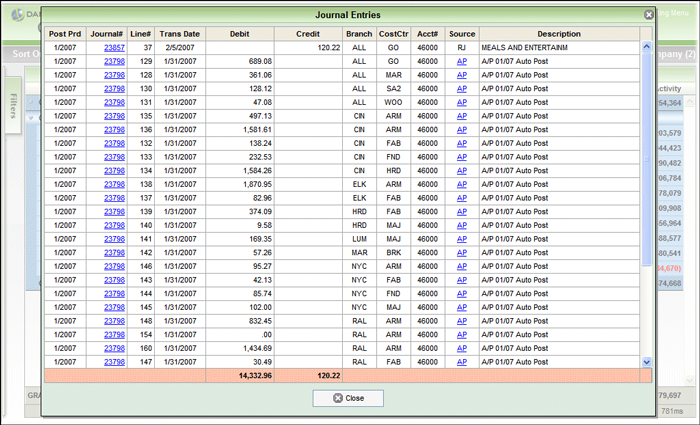
The Source codes are:
The first four are automatically entered by the system and the last three are user entered.
IN - Inventory
IV - Invoicing
AR - Accounts Receivable
AP - Accounts Payable
JE - Journal Entry
RE - Recurring Journal Entry
RJ - Reversing Journal Entry
PR - Payroll
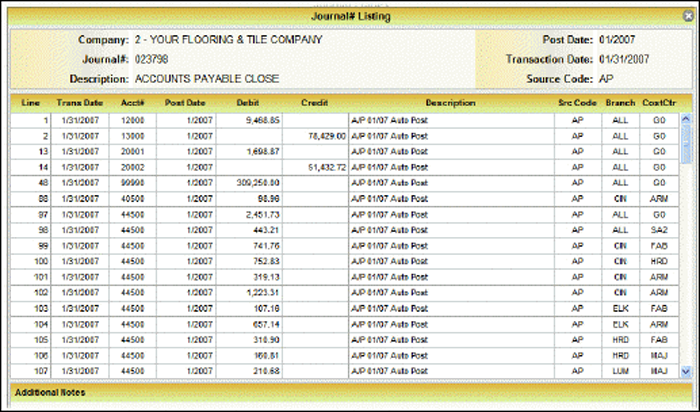
6. As shown above, you can continue to drill down by Journal# (The GL system automatically assigns journal numbers) or Source. Examples of both drilldowns are shown below.
Drilldown by Journal Number
Drilldown by the source of the journal entry (at the present time only one source, AP, is available for drilldown).
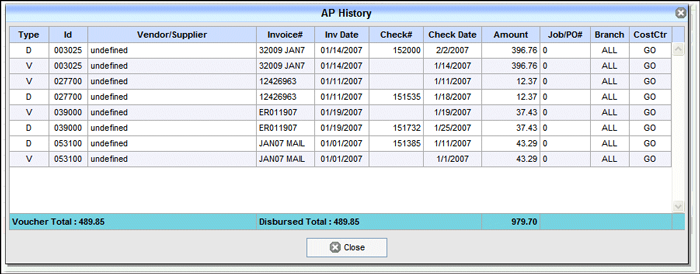
The two Types of transactions are (D) disbursements and (V) vouchers.
The ID is the vendor/supplier number.
7. Click Close to return to the original drilldown information.
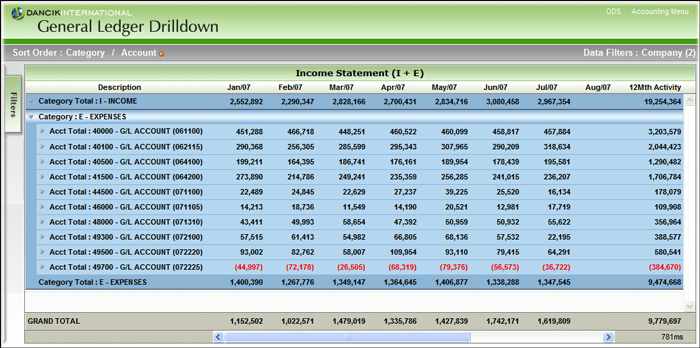
8. Click the arrow next to an entry to drilldown further.
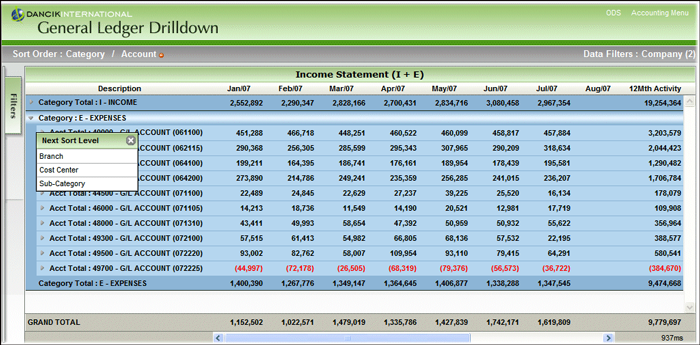
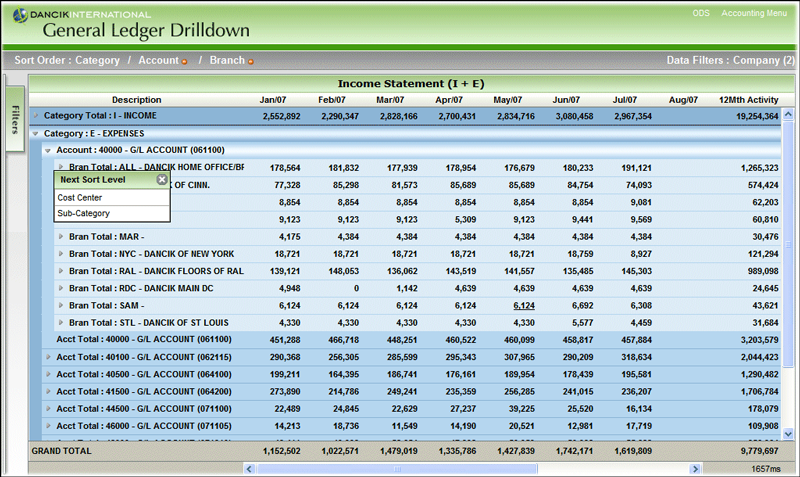
9. Whenever you drilldown into information, the drilldown path always shows in the upper left-hand corner. This way you always know where you are inside the information. If you need to remove a sort level, simply click the symbol to the right of it.
10. Even at this level, there are two more levels to drilldown into.
Creating a General Ledger Drill Down Spreadsheet
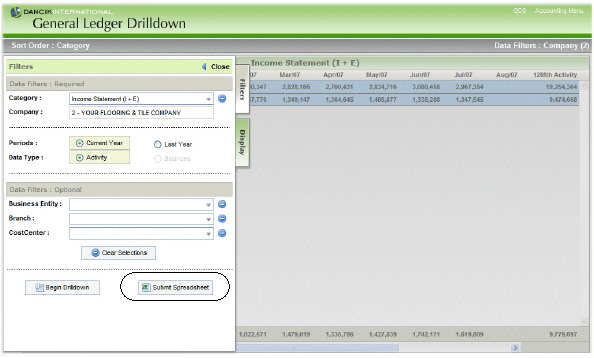
1. On the Filters tab, click Submit Spreadsheet.
|
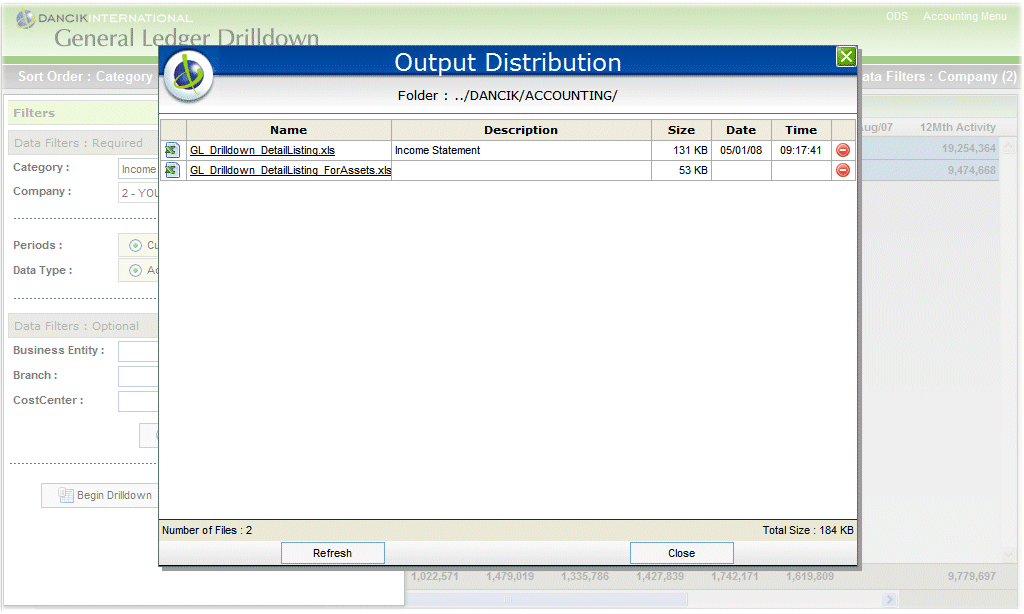
2. After the spreadsheet is named, the system generates it and stores it under an accounting folder on your iSERIES machine. The spreadsheets are accessed via the ODS link in the top right hand corner.
|
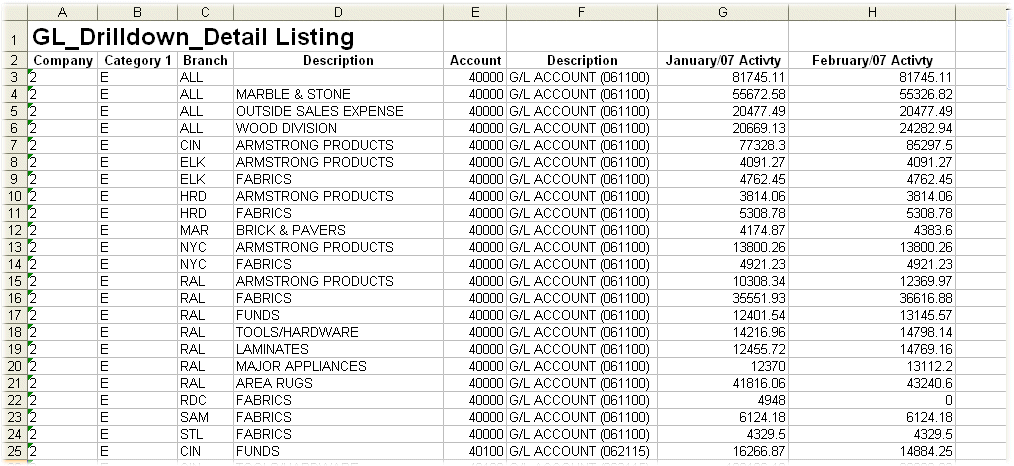
3.To open a spreadsheet, simply select it. An example spreadsheet is shown below.
|
GL Account Sub-Categories File (ACT 119)
GL Account Validation Table - ACT 108
GL Cross Reference by Branch or by Warehouse - ACT 13