
Sales Portal My Sales
This functionality allows a salesperson or sales manager to view sales statistics.
Set-up
Granting Permission to My Sales
Salespeople or Sales Managers have to be granted access to the My Sales functionality via the Navigator menu. Use of the following Navigator Menu options:
- NAV 1 - Global Access - Path to grant access: "A" in Sales Portal Web App/ "Y" Allow User to access to My Sales Widget.
- NAV 2 - Authority Class Level - Path to grant access: "W" for an authority class/"A" in Sales Portal Web App/ "Y" Allow User to access to My Sales Widget.
- NAV 5 - User Level - Path to grant access: "W" for an User/"A" in Sales Portal Web App/ "Y" Allow User to access to My Sales Widget.
System Wide Setting - Options for Sales Portal
This System Wide Setting contains two options that limit the orders a salesperson can see in the My Sales and Customer Information portions of the Sales Portal. For more information, refer to Options for Sales Portal.
Salesperson File
The Sales Manager setting ties the salesperson to a sales manager and allows the sales manger to access the salesperson's statistics.
Nav 5 - Control User File Maintenance
Two fields can limit access to sales information.
- Access menu option NAV 5
- Enter a "U" to update a record.
The two fields are Salesperson ID and Sales Manager ID.
- The Salesperson ID field is validated against the Salesperson File and the Sales Manager ID is validated against the Sales Manager File.
The Salesperson ID, and the Sales Manager ID fields work together with the Limit to Salesperson# as follows:
- Sales Portal wants at least one of the 3 fields populated.
- If you are not trying to limit anything anywhere other than on the sales portal then you can populate Salesperson ID and leave the Limit to Salesperson# field blank.
- If you are restricting throughout the application currently and have the Limit to Salesperson# field already populated then you do not need to populate the Salesperson ID for the sales portal.
How the Salesperson ID and Sales Manager ID settings work:
- Salesperson ID
- Check the Sales Relationship table in SET 28.
- If an entry is found, identify all Salespeople ID in Table including the original ID.
- Then search Salesperson File for all records for the salespeople IDs identified in above and return the results.
- If no record is found in the Sales Relationship table, return results for Control Panel Salesperson ID.
- Sales Manager ID
- Search the Salesperson File for the Sales Manager field.
- Return all Salespeople associated with the Sales Manager ID.
- Both a Salesperson ID and a Sales Manager ID is entered
- Both the Sales Person and Sales Manager files, and their associated files and tables, are checked and the results are listed as one on the Sales Portal.
Checking My Sales
- Access the Sales Portal and click the My Sales icon.
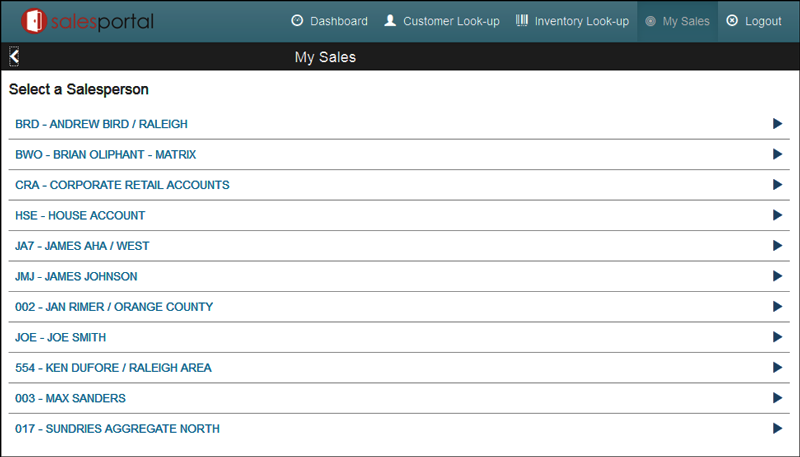
- If a Sales Manager is accessing the information, as in this example, they have access to all the salespeople that report to him.
- Click a Salesperson to access the following sales information:
- Sales Statistics
- Sales Month- By-Month
- Open Orders
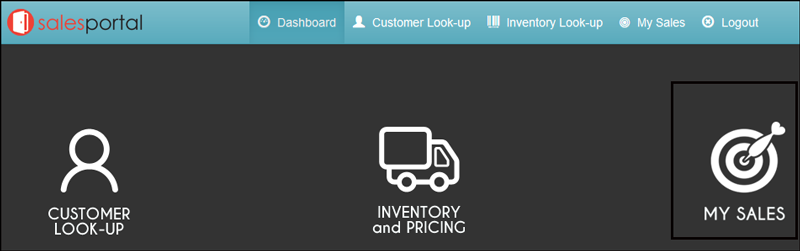
If the My Sales icon does not appear, check the Control User File Maintenance (NAV 5) to ensure a salesperson is entered into the Limit To Salesperson# setting.
Sales Statistics
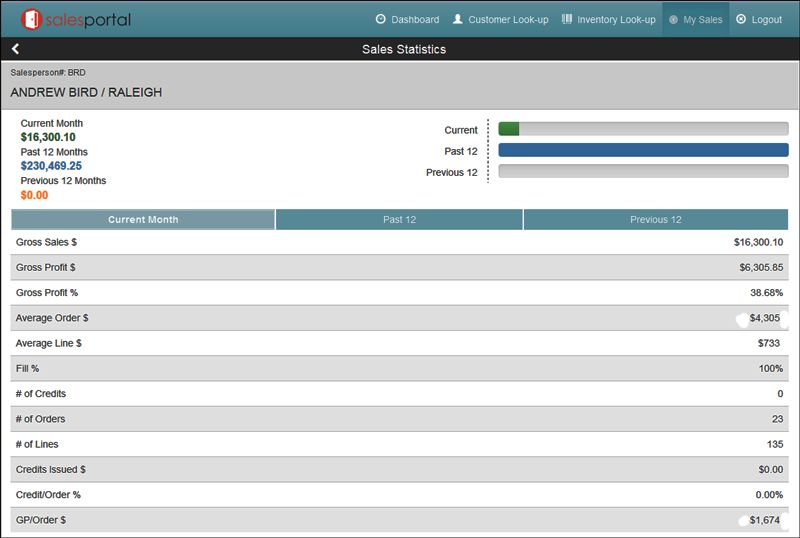
The information displayed is imported in from the Salesperson File.
You can toggle between the following time periods:
- Current Month - Orders that are currently open and have not been invoiced.
- Past 12 - These sales are based off of today's date for the past complete 12 months.
- Previous 12 - Based off of today's date for the previous complete 12 months. These sales are from 24 months ago.
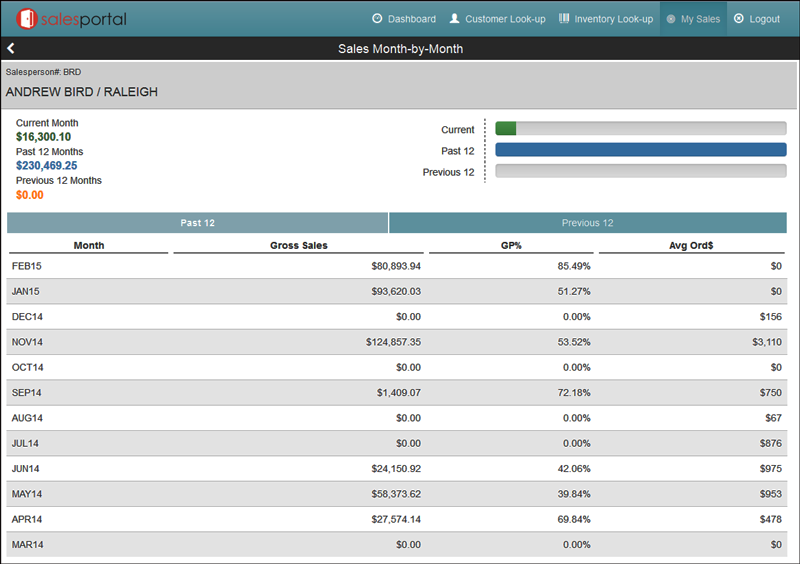
Sales Month-By Month
You can check the month-by-month sales for the Past 12 months or the Previous 12 months.
Open Orders
This part of the Sales Portal lets you check on Open and Pending orders for a salesperson. If the order was assigned to multiple salespeople, the order displays in all the assigned salespeople's My Orders inquiry.
- Open Orders are commitments from the customer to buy products but the orders haven't been invoiced yet.
- Pending orders include quotes and estimates.
An order is shown if it has at least one detail line or message line that includes a dollar amount and that line has not been invoiced.
Click the arrow at the extreme right of the window to view the order details.
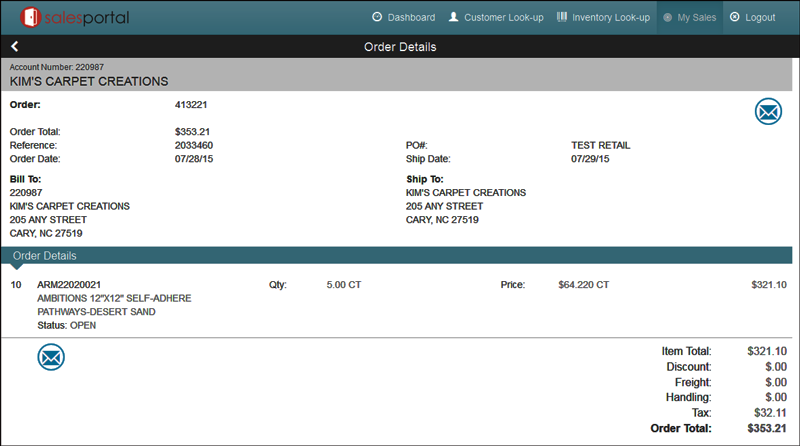
Review the order as needed and/or click the mail icon to send an email to the contacts set-up as internet contacts (Number Type I) on the Phone Number screen of the Billto File.