
COD Invoicing and Reports - WAR 18
The COD Invoicing and Reports Program is accessed via option 18 on the Warehouse Functions Menu.
This program includes three options:
- Print COD reports, summary version
- Print COD reports, detailed version
- Print COD invoices.
This program allows you to print COD orders or invoices by customer/stop, with complete totals. The totals account for delivery charges and minimum order charges. This program eliminates the need for drivers or traffic managers to determine any COD charges. The COD reports can be used to notify customers in advance of exact COD check requirements. The COD invoices can be delivered with goods. This program also provides an alternative to the Company Settings option which offers the choice of applying delivery charges to every COD order as taken, or to wait for invoicing in order to determine the delivery charge. If you use this program, set the Company Settings option to not charge delivery on COD orders. Then, using this program, you can provide drivers with either COD invoices or reports, which determine exactly what the total charges, including delivery, should be. This program groups COD orders for a customer together, exactly like the invoicing programs do.
Option 1 produces a report. Option 2 produces actual invoices.
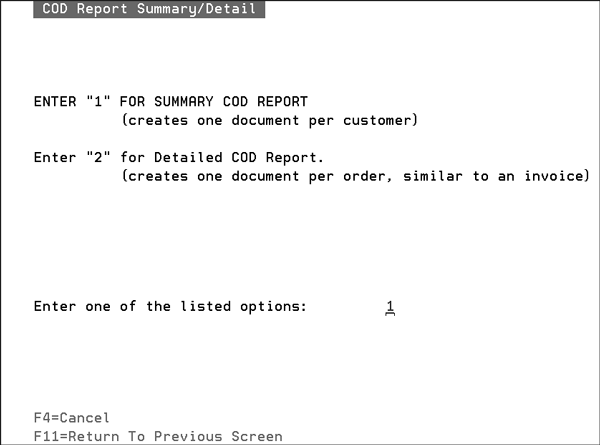
The summary COD report prints on regular pick list/packing list forms. One document is created per customer, which includes a line for each order, plus information regarding delivery charges and minimum order charges when applicable. If any charges emanate from the Minimum Order Charges File, a message appears at the bottom of the report that describes exactly what the charges are for. For example, Fuel Surcharge. This matches the message/charge that appears on the invoice.
The detailed COD report. This report prints on regular pick list/packing list forms. One document is created per order.
These documents have the same information as an invoice, but are labelled COD report. If multiple orders are included for a customer, only one document includes applicable delivery and minimum order charges. After choosing an option, the following screen is displayed.
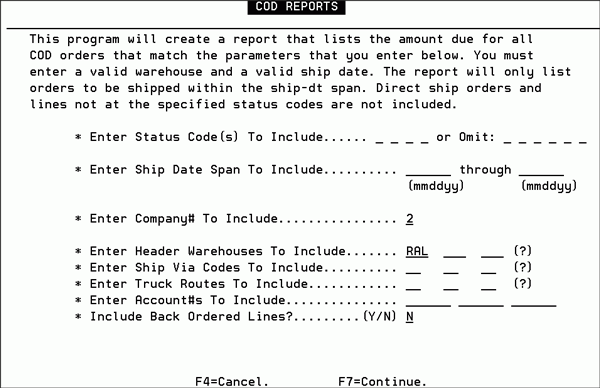
Enter applicable parameters as follows.
|
Parameter |
Description |
|
Status Codes |
You can request to include up to four status codes or to omit up to six status codes. If you are running the COD reports or invoices in real-time (as you prepare the shipments) then we recommend to include only status = S for shipped. If you are running these reports before items are prepared for shipment, then you need to include or omit status codes based on your method of operations. |
|
Ship Date Span |
This is mandatory. Normally you run these reports for a single ship date, such as today or tomorrow. |
|
Company# |
This is prefilled with your default company number. It can be changed if you are authorized. |
|
Header Warehouses |
This is prefilled with your default warehouse if applicable. This is the warehouse which is shipping the COD orders. |
|
Ship Via Codes |
Enter the ship via codes to include, or leave blank for all ship via code. |
|
Truck Routes |
Enter the truck route codes to include, or leave blank for all truck routes. |
|
Account#s |
Enter the customer account codes to include, or leave blank for all customer accounts. |
|
Include Back Ordered Lines |
Enter N to keep lines currently on back order from being included in the COD reports. Enter Y to include back ordered lines. Only enter Y if you expect the back orders to be filled prior to the actual shipment, or if your policy is to collect for back orders even if not delivered with other goods. The default is N. |
When the COD Invoices option (option 2) is selected, the invoicing parameter selection screen is displayed.
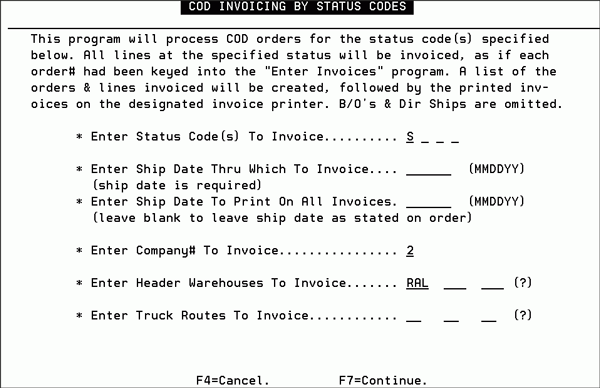
Enter applicable parameters as follows.
|
Parameter |
Description |
|
Status Codes |
You can request to include up to four status codes or to omit up to six status codes. If you are running the COD invoices in real-time (as you prepare the shipments) then we recommend to include only status = S for shipped. If you are running these reports before items are prepared for shipment, then you need to include or omit status codes based on your method of operations. |
|
Ship Date Through Which to Invoice |
This is mandatory. Normally you run these reports through a ship date such as today or tomorrow. |
|
Ship Date to Print on All Invoices |
Leave this field blank to simply print the ship date on the order, on the invoice. Optionally, enter a ship date here, which will be printed as the ship date on all invoices. |
|
Company# |
This is prefilled with your default company number. It can be changed if you are authorized. |
|
Header Warehouses |
This is prefilled with your default warehouse if applicable. This is the warehouse which is shipping the COD orders. |
|
Truck Routes |
Enter the truck route codes to include, or leave blank for all truck routes. |