Dock Door Outbound Assignment Template - WM1 9
The template feature allows you to assign routing combinations that are consistent into a single reference point. You can then assign that template to the Dock Doors easily each day as the routing is associated with a trailer at a Dock Door. This eliminates having to manually enter routes every day.
As the template is assigned to a Dock Door, the data is copied to the Dock Door file and may be modified to reflect what the real assignments are. The template is not updated with the modifications using Dock Door Outbound Assignment Maintenance (WM1 8). The templates are only updated using Dock Door Outbound Assignment Template Maintenance (WM1 9). This allows you to setup known modes, but change them to reflect required changes to meet each day's business activities.)
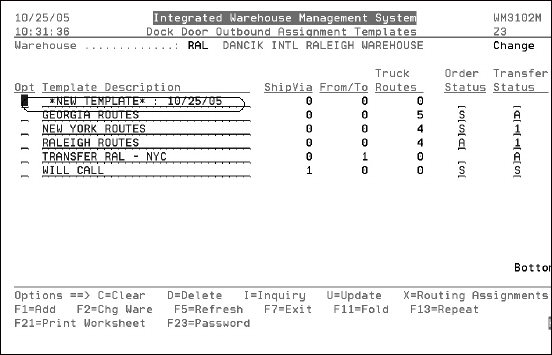
- From the IWMS Physical Warehouse Setup Files (WM1) menu, select option 9. The following figure presents an example of a Dock Door Outbound Assignment Templates screen.
- C = Clear all assignments
- D = Delete the template record from the file
- X = Select the template to add/remove assignments of routing data.
- If you want to view the information contained in your templates on one screen, press F11. The following figure shows the maintenance screen in the unfolded mode. Pageup and pagedown will roll you through the templates.
- Press F11 to return back to the summary mode.
- There are 3 areas of assignments:
- ShipVia - Ship Via codes tell the system how the material at a particular door is going to be shipped. For example, if there is one door where only common carriers and/or delivery companies like UPS or FEDEX load or unload you can use the following screen to assign the appropriate ship via codes.
- From/To Warehouse Combinations - The From/To Warehouse combination is used for your interwarehouse transfers.
- Truck Routes
- Click the category you wish to assign/edit detail assignments for. The screens for all three categories operate in a similar fashion. The screen that appears shows any values for that category already assigned.
- To create a new template, press F1. The title New Template (followed by today's date) is inserted at the top of the template list.
- The steps to create a new template are essentially the same as editing an existing one.
- Select it placing an X in the Opt column.
- Decide if the template is going to be set-up for ShipVias, Warehouse Combinations, or Truck Routes.
- Assign the values (shipvia codes, warehouses, truck routes).
- Give the template a meaningful full description, so you can determine the assignments quickly when assigning the template.
- Setup the status code to be assigned to the orders as they are loaded onto the trailer.
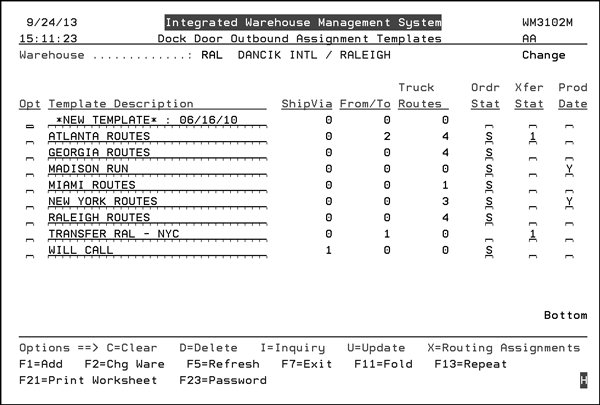
| Field | Description |
| Opt |
Option to perform on the template record. |
| Template Description | Enter a descriptive name for your template so you will know what it's assignments are without requiring a drill down. |
| ShipVia | Shows the number of assignments currently assigned in the Ship Via category. |
| From/To | Shows the number of assignments currently assigned in the Transfers category. |
| Trk Rts | Shows the number of assignments currently assigned in the Truck Routes category. |
| Sts | This is the status assigned to the orders that are being placed in the trailer. Leaving this value blank forces the loader to update the status as each pallet or roll is loaded. |
| Transfer Status | This is the status of transfer orders. Leaving this value blank forces the loader to update the status as each pallet or roll is loaded. |
| Prod Date |
This flag validates that all orders being loaded into a specific dock door would have that day's production date. This can help ensure that orders are not being shipped early to the customer. This column can act as a quick reference to see which dock doors are set-up to use the production date. To set-up a dock door to use the production date, update (by entering a U in its Opt field) a current dock door entry by entering a Y in the Production Date setting. The production date matches today's date. In order for an order to be loaded, with no error generated, the production date has to match today's date. The event trigger WRNGPRDDAT sends out an email whenever an order is scanned at the dock door and the production date does not match today's date. |
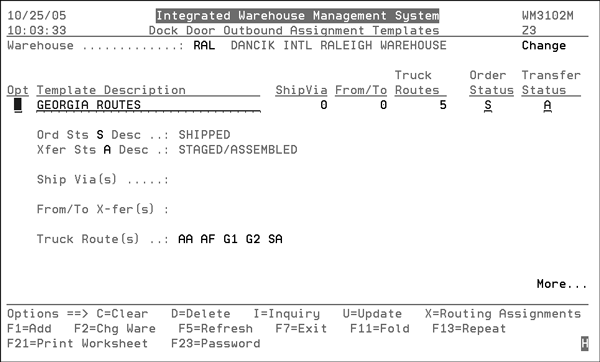
The following screen is presented when an X is placed in the Opt field. It applies when the screen is in the summary or detail mode.
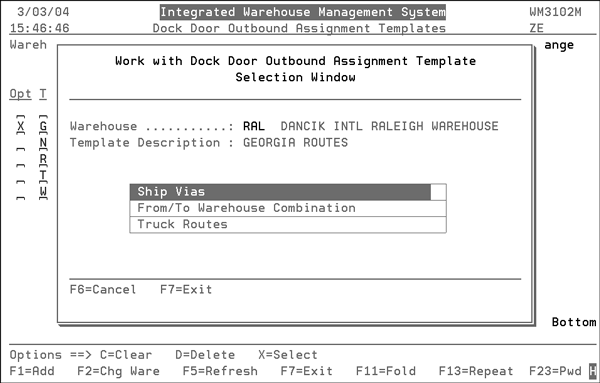
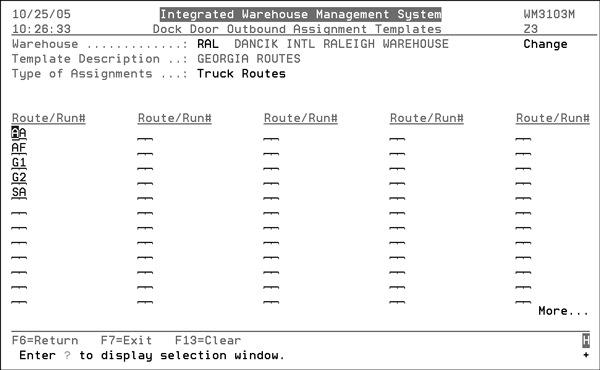
If you use run numbers there could be two fields under the Truck Routes heading. The second field is for entering the run number. Not all ruck routes have run numbers assigned. Run numbers are used to further define truck routes. For example, you can have a route set up for a city and run numbers established for a specific day.
The option to include or exclude run numbers is on the Warehouse File Maintenance Screen (accessed via screen two of the Warehouse File Maintenance - IWMS menu WM2 option 1).