Paying AP Invoices by Credit Card
This guideline discusses the options to keep a record of invoices from vendors that are paid by credit card.
An invoice is received in AP from a vendor and/or supplier. You want to enter that invoice in AP under the vendor/supplier profile in order for you to have a record of the invoice in history. However, you will pay this invoice by credit card. You then receive a statement from your credit card invoicing you again for the same amount and you do not want to enter this amount to the same expense account since it would double the expense. As far as clearing the invoice off from the vendor/supplier's account as paid, the only way to clear the invoice from the vendor/supplier is to issue a check. Besides this check, you also have to issue a check to pay the credit card company. How would you need to record this so that the expense and cash are recorded and it only affects the GL once?
There are two methods you could use to pay invoices by credit card:
Method A - Not Affect Cash Screen
Method B - Cash Register Screen is Affected
Method A - Not Affect Cash Screen
In this first method, if you rely on your Company File Cash Screen then this is the suggested method to use.
- Create a chart of accounts for example called credit card clearing.
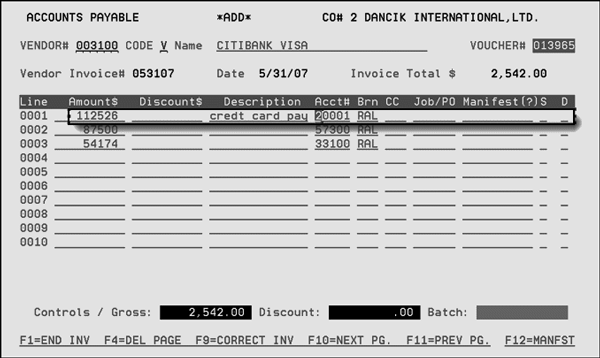
- Enter the supplier's/vendor's invoice in AP under their code. You will need to pay off this invoice. To do this, you can either:
- Enter a manual check at the same time you're entering the invoice or
- Pay this invoice through the normal check run but do not mail out the check since it's a fictitious check but just physically write on the check as VOID.
- Enter the invoice under the credit card company. Make sure the expense account number is the account number used for credit card clearing.
- Debiting the credit card clearing account.
- When the check is issued against the credit card company it is crediting cash again.
- Go into AR Menu and enter cash. This next step will debit the cash that has been deducted twice and credits the credit card clearing account to zero out this account.
- Enter the amount as a positive and post to the credit card clearing account.
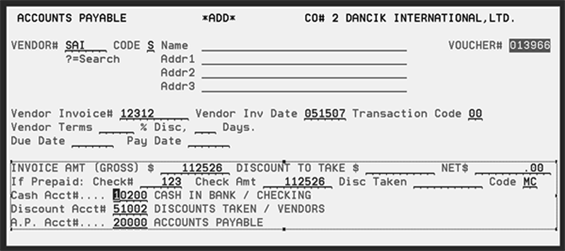
You will need to create a manual check register to capture these fictitious payments. Step #2 credits the cash account and also reduces the cash register screen.
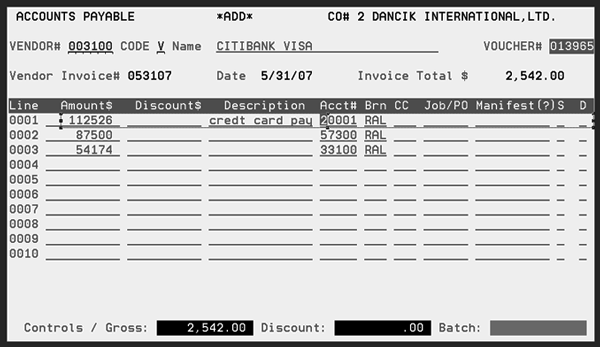
By entering this invoice you are:
Enter the cash to account #99999. Enter the check#, the amount of the invoices paying by credit card, batch # and batch total.
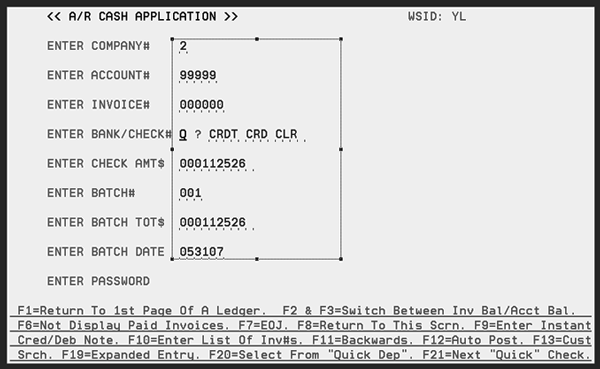
Make sure the Bank Code used on this screen is the same general ledger cash account that is used in AP when issuing checks.
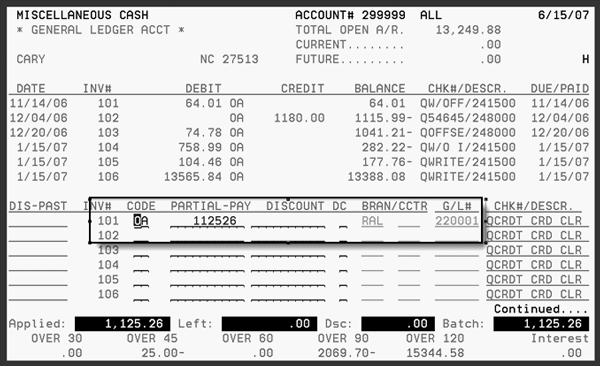
This step will debit cash and increase the cash on the Company File Cash Screen to offset the two checks deducted in AP when it should only one time. It will also credit the credit card clearing account.
Method B - Cash Register Screen is Affected
In this second method, if you do not use the Company File Cash Screen then this is the suggested method to use.
- Create a chart of accounts for example called credit card clearing.
- Enter the supplier's/vendor's invoice in AP under their code. You will need to pay off this invoice. To do this, you can either:
- Enter a manual check at the same time you're entering the invoice. Make sure you change your cash account to the credit card clearing account.
- Pay this invoice through the normal check run but do not mail out the check since it's a fictitious check but just physically write on the check as VOID.
- Enter the invoice under the credit card company. Make sure the expense account number is the account number used for credit card clearing.
- By entering this invoice you are:
- Debiting the credit card clearing account.
- When the check is issued against the credit card company it is crediting cash.
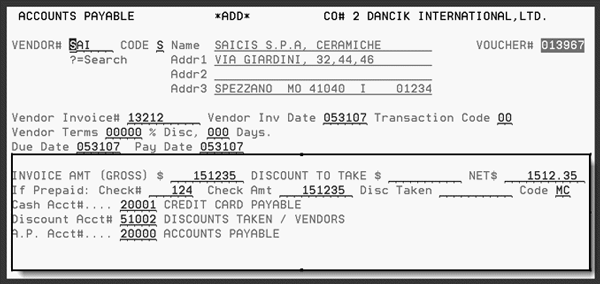
This step credits the credit card clearing account when the check is issued.