
DNAV - Online Working with Price Lists
Option D24 55 - Create Dynamic Price List URL
DNAV - Online Working with Price Lists
Option D24 55 - Create Dynamic Price List URL
Adding the Price List URL to a Decor Option
Accessing the Price List URL in Decor 24
Use this option to build the URL and point it to the correct price list template.
- Go into the Decor 24 menu and select option 55 - Create Dynamic Price List URL.
- Press F1 to create a new price list template.
- Enter the information as needed.
- Press Enter to save the changes and the press F6 to return to the initial screen where the new entry is displayed.
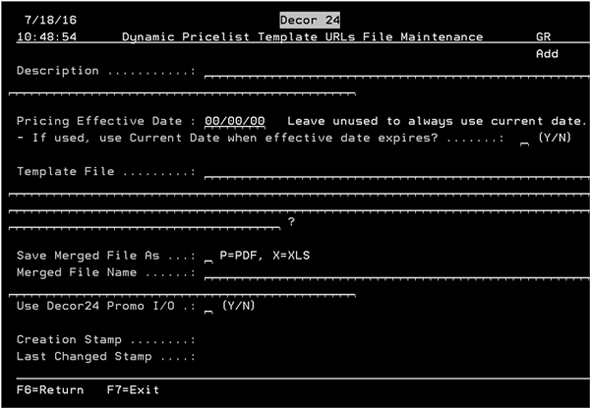
| Setting | Description |
| Description | This is the description that appears on the D24 55 screen. |
| Pricing Effective Date | The effective date of the pricing. |
| Template file | The location of the template on the IFS. You can enter a ? in the field to access an IFS Lookup Window that helps you build the directory path. |
| Save merged File As | Determines which output is received when the report is select in Decor 24. |
| Merged File Name | The value that appears as part of the URL that is created for use in the Decor24 menu option setup. |
| Use Decor24 Promo I/O |
This setting gives you the ability to include or omit pricing promotions. The default for the setting is to be set to N. The Promotional inclusion or omission comes from the option Promo Include/Omit Entry on the Decor 24 menu (menu option D24 29). |
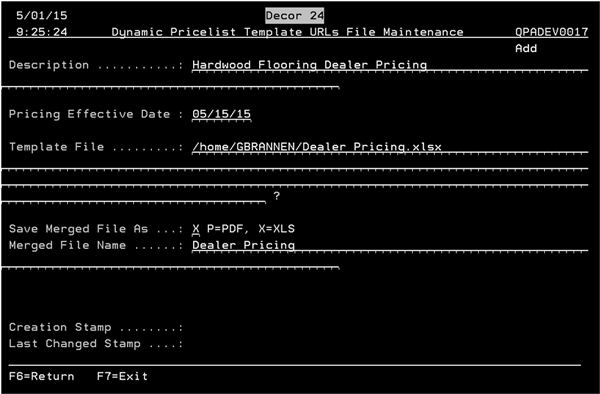
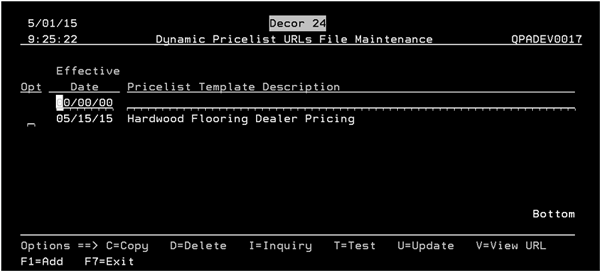
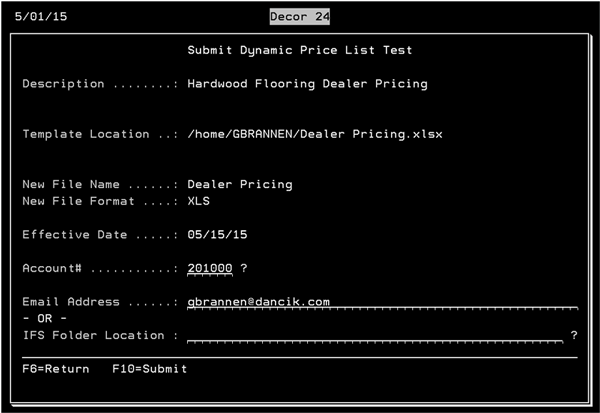
Options:
T=Test - opens a window that allows you to send a test version of the output to an email address or an output location on the IFS. Press F10 to send the email or put the price list on the IFS.
V=View URL - Opens a window that contains the URL that is needed when performing the Decor24 drop down menu configuration.
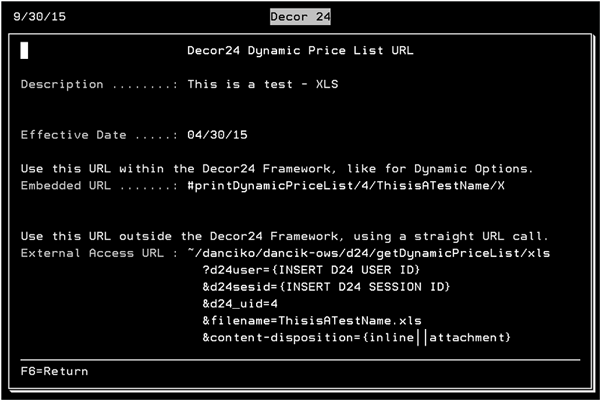
- The External Access URL can be used to access the Price List from outside the Decor 24 Framework; such as from an external web page.
Adding the Price List URL to a Decor Option
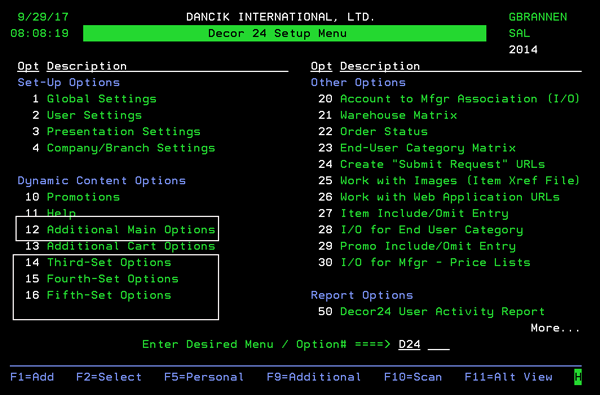
- The price list URL can be added to the Decor 24 Dynamic Content Options using Options D24 12 and 14-16.
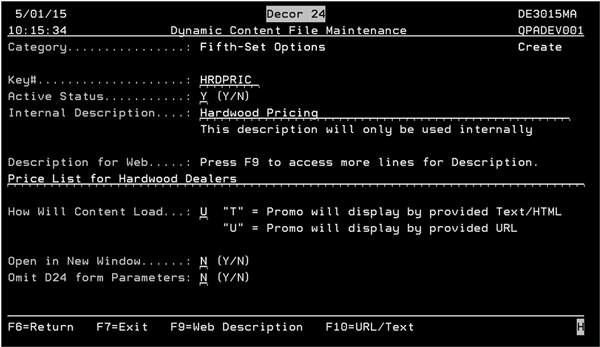
- In this example, the URL link is going to be added to the Fifth Set options (D24 16). Access menu option D24 16 and press F1 to add the new entry.
- Press F10 = URL/Text to enter the URL you obtained from D24 55.
| Setting | Description |
| Key# | The name shown in the listing on the first screen. |
| Active Status | Enter a Y to display the URL in the Decor 24 menu. |
| Internal Description | The description that appears in the listing on the first screen. |
| Description for Web | This is the description that your customers see in Decor 24. |
| How Will Content Load | Must be set to U. |
|
Open in New Window Omit D24 form Parameters |
Set these to N. |
Accessing the Price List URL in Decor 24
Access Decor 24 and click on the option where you placed the URL.
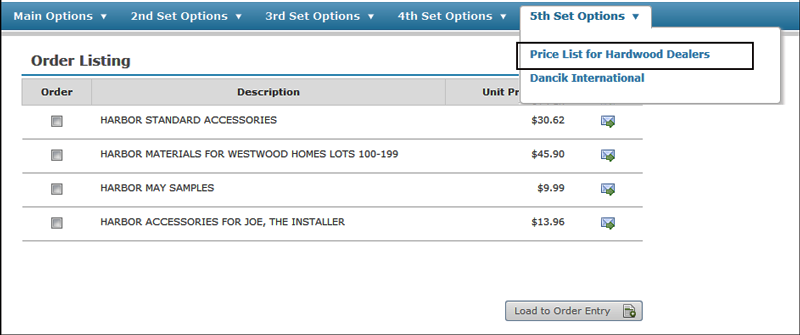
If you designated a PDF format for the price list, the PDF file automatically displays.
If you saved it as an Excel spreadsheet, what happens next depends on the browser you are using. The spreadsheet can be sent to your download file or the browser can open it up in a new tab.