
DNAV - Online Item and Price Catalogs
Set-up for Price and Item Catalogs
Running a Specials List in Decor 24
Set-up for Price and Item Catalogs
- Global Settings (D24 1) - Screen 5 - This screen presents several options pertaining to generating price lists and the data that is displayed. The setting Run Price List as a Hybrid directs the system to generate a hybrid price list. A Hybrid price list contains the same information as a summary price list, but it includes item pricing that is different than the summary price.
- Presentation Settings (D24 3) - Screen 14 - The options on this screen allow you to change the text on the Request Price List window.
- Presentation Settings (D24 3) - Screen 15 - Anytime a Price List is requested, regardless of the format (e.g., spreadsheet, posted to web, PDF), an email is generated and sent to the distributor. The options on this screen allow you to change the subject text of the email and add body text (the default is no body text).
- Presentation Settings (D24 3) - Screen 16 - These settings allow you to customize the format of the Price List PDF. If these settings are not changed, the default PDF format is used.
- Presentation Settings (D24 3) - Screen 17 - Includes settings that deal with the Post to Web option. Unless another IFS path is entered into these fields the default format is used. The Post to Web default is installed into your IFS when Decor 24 is updated. If this file becomes damaged or corrupted, this functionality will not work properly.
- Item Include/Omit Entry (D24 27) - This option provides the ability to customize price lists by hiding items that you do not want your customers to see, such as samples, promotional materials, and raw materials.
Requesting a Price List
Associated Files
- Price File - The field, PrcList Desc, allows you to enter an additional description that is displayed on all versions of the Decor 24 price lists.
- Upload Extended Price Class Descriptions (D24 100) - This option allows you to upload extended price class descriptions from a CSV spreadsheet file.
- Future and Sale Price File
- Promotional Pricing File
Running the Price List
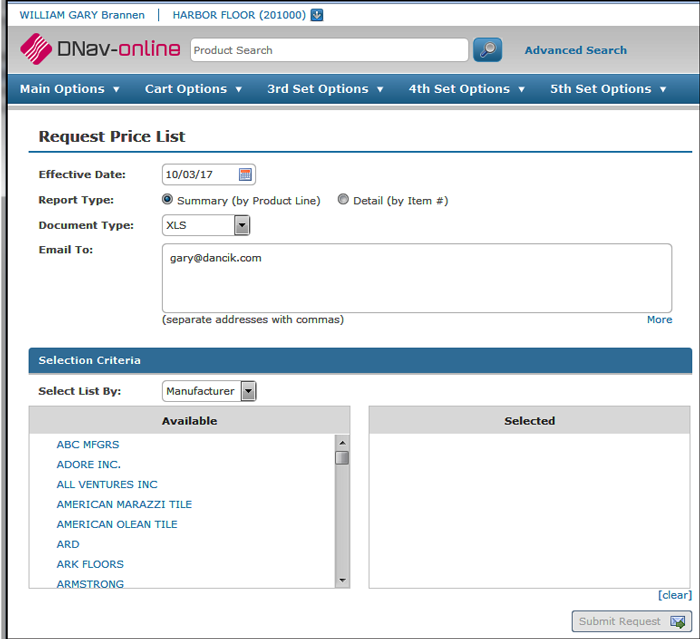
The Price List link, located under the 3rd set options heading, allows your customers to request pricing information by Category, Manufacturer, or Product Line in a variety of formats. This information can be requested for all your products or it can be customized down to a particular category.
- When it is clicked, the following window appears.
- Select the Effective Date of the Price List. The date is defaulted to today's date.
- Select a Report Type. Price lists can be run different ways, based on D24 settings and user selection:
- Summary – summarizes pricing by Price Class
- Hybrid – same as Summary EXCEPT in cases where one or more items in a price class has a different price than other items in that same class; in these instances, Item-level detail is included.
- Detail – lists each individual Item
- Select a Document Type. The information sort is a little different between a PDF price list and one run for Excel.
- The PDF price list is sorted by the category it is run for (i.e., when ran for Manufacturer it is sorted by MFGR).
- The Excel format can contain more information and therefore uses different sorting options:
- MFGR - sorts by manufacturer description, price class description, then item description.
- Price Class - sorts by price class description then item description.
- Category - sorts by end user description, manufacturer description, price class description, then item description.
- The address in the Email Address box is where the price list is sent. All of the format options (Excel spreadsheet, XML, Post to Web, etc.) generate an email that includes the price list. The Email Address field automatically contains the e-mail address entered using the Info link in the top right-hand corner. Up to ten unique email addresses can be entered. The emails displayed when More is clicked come from the Phone Number File. They are records flagged as I - Internet/Email Address. The text separate addresses with commas under the Email Address box can be changed via screen 9 of the Presentation Settings.
- In the Selection Criteria box, click one of the three selection parameters (Categories, Manufacturer, Price Class). The options in the Selection Criteria box, change depending on your selection criteria. To include a category in the price list, click its box to move it over to the Selected area.
- Click Submit.
The default Email can be overridden via the From E-Mail Address Override setting on Screen 15 of the Presentation Settings.
Determining the Next Price for a Price List
The next price for an item is based on the day after the expiration date of the current price. Decor 24 identifies any active promotions for the item and performs a price check by adding one day to the end date of the active promo to see if there is any applicable pricing information in the future price file, future promos and/or future customer price exceptions to determine what the next price is.
Here are the steps the system follows to determine the next price for a price list:
- Add 1 to the current price expiration date to determine the next price effective date.
- Check the Future Price file. If an entry is found with an effective date less than or equal to the next price effective date then the next price equals the Future Price file price.
- Check the Promo file. If an active promo is found for the next price effective date check to see if it is equal to current price.
- If current price = next price then next price is the price per the customer's price list with effective date equal expiration of the promo.
Examples
- Example 1, the current price is from an active promo ending on 6/30/16, if there is a price increase entered in the future price file with an effective date starting on 6/20/16 this is the price that will be displayed as the next price.
- Example 2, the current price is from an active promo ending on 6/30/16, if there is a promo that starts on 6/30/16 this is the price that will be displayed as the next price.
Requesting an Item Catalog
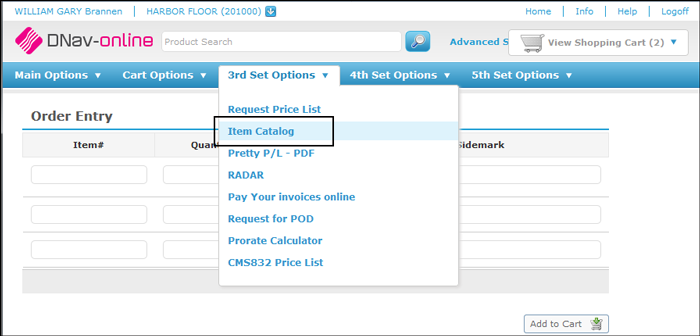
If you have Channel Management Solutions (CMS), you can use the Item Catalog link under the 3rd set options to send out item catalogs.
Set-up
WEB 100 - Work with Web Application URLs - Make the following entries to ensure your customers can request item catalogs in Decor 24.
- Your system's URL
- Root Net.Data Access URL
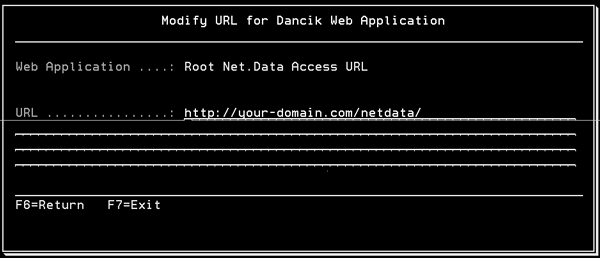
Select Root Net.Data Access URL from the list of Web Applications
Enter your external web address in the place of your-domain.com. This ensures your external customers can request Item Catalogs via Decor 24.
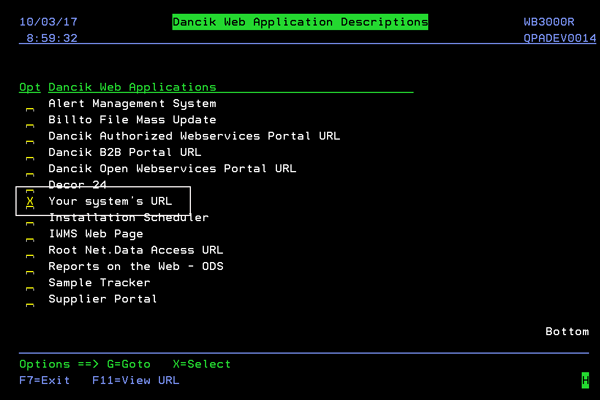
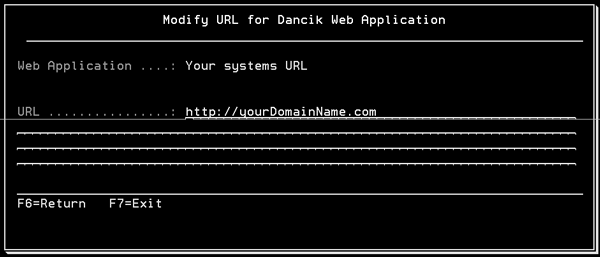
Replace yourDomainName with your IP address.
Requesting An Item Catalog
- Select Item Catalog.
- Enter an Account Number and an Effective Date. Effective dates do not consider information in the Future Price File (FIL 28). However, future promotional pricing is included.
- Click one of the three selection parameters (Product Line, Manufacturer, Category). These options can only be used individually. In the example shown below, manufacturers are selected. Note that when selected they are moved into the Selected column.
- If this partner already has a catalog and you just want to send out new pricing, select Price Changes Only.
- The delivery type CSV/Email has to be used and an E-mail Address must be entered. The FTP delivery option is not available when ordering Item Catalogs through Decor 24. The email is sent with a return email address that is configured within ODS. To change this address, follow these steps:
- Enter the command ODSAUTHODS so you can update ODS files.
- On the ODS menu, select option 1 - Authorization Maintenance. This option lets you know if you are authorized to update ODS files.
- Return to the ODS menu and select option 2 - Initial Distribution Options.
- Press F9 and change the email address on the Work w/ E-Mail Defaults screen that appears.
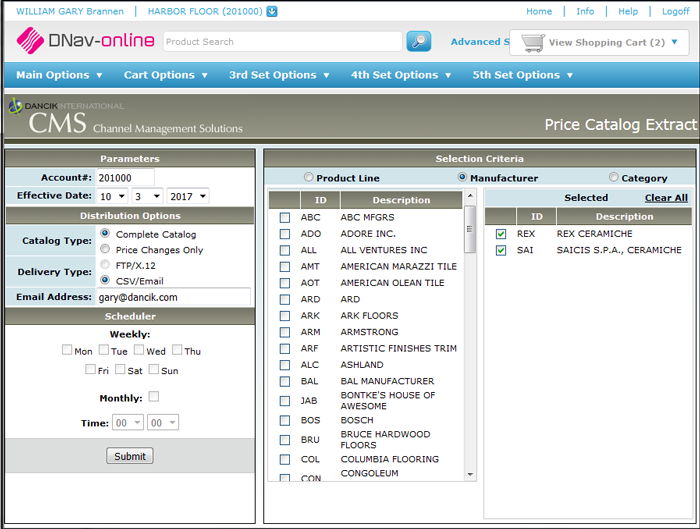
If you are extracting pricing changes, you can use the Scheduler to select a day, month, or time for CMS to automatically extract the changes. Monthly updates are sent at the beginning of the month.
Running a Specials List in Decor 24
Items are included in a specials list if:
- They have a Item Policy code of SP or DI on the Item File Profile screen.
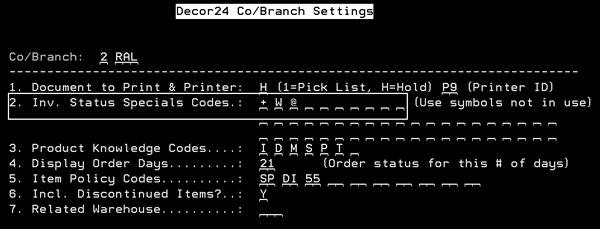
- The item has a status code that is included in the setting Inv. Status Specials Codes on the Company/Branch Settings (menu option D24 4).
Associated Files
- Price Class File - Only items that are included in a price class that has an End User Category identified will be included in the specials list. If an End User Category is not specified the price class and the items covered by will not be included in the specials list.