
DNAV - Online Dashboard
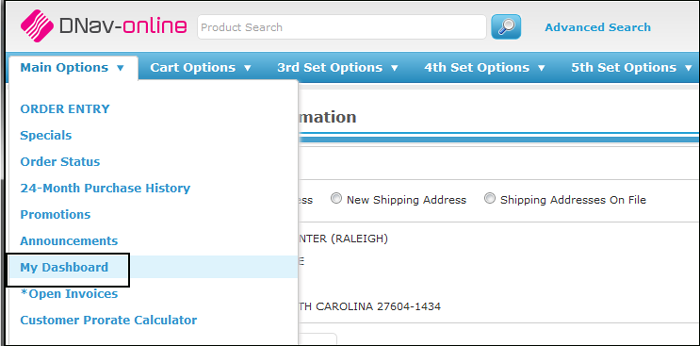
The dashboard allows you to quickly check: Processed Orders, Unprocessed Orders, Scheduled Deliveries, Recently Viewed Items, and Open Invoices.
Set-up
Adding the Dashboard Link to Decor 24
Making the Dashboard appear upon login
Adding the Dashboard Link to Decor 24
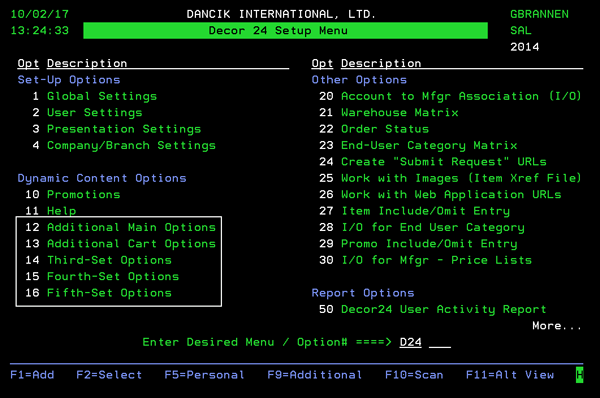
- Decide where you want the Dashboard link to appear. If you want it to appear with the top-level options use option D24 12 on the Decor 24 menu. Using option D24 13 moves the link down one level and so on.
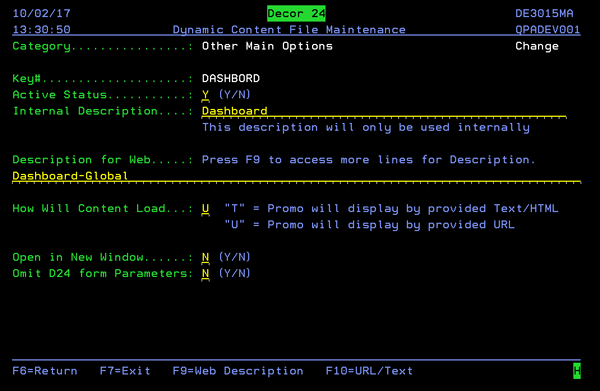
- Once the location of the dashboard has been selected, press F1 to create and define dashboard specific settings. Ensure the Omit D24 form Parameters field is set to N. This stops D24 from adding additional information to the web address and allows access to the information.
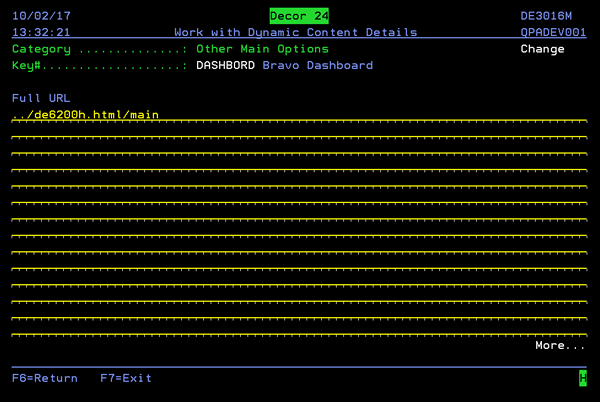
- Press F10 and add the URL link ../de6200h.html/main
Presentation Settings
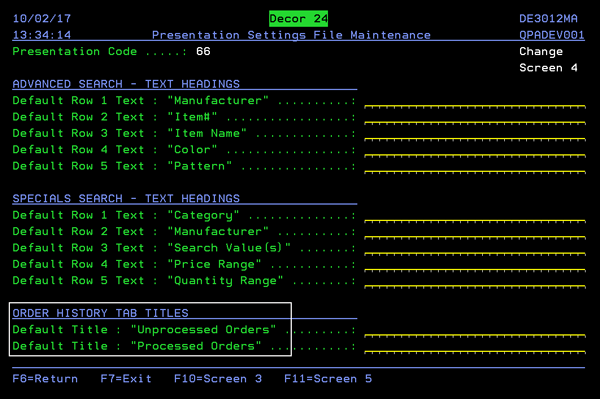
Screen 4 allows you to change the Order History Tab Titles from the defaults (Processed and Unprocessed).
Making the Dashboard appear upon login
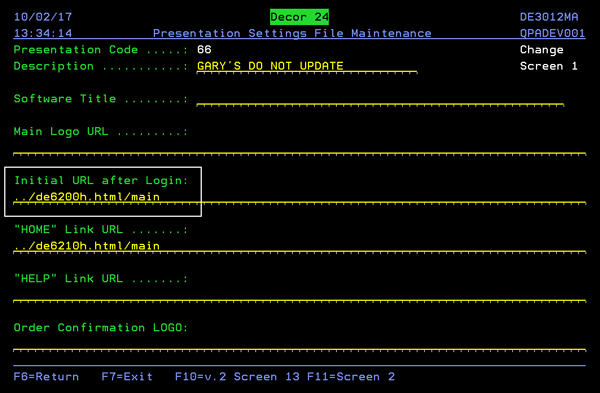
On the first screen of Presentation Settings, you can make the Dashboard appear upon login by defining the initial URL after login to ../de6200h.html/main.
The Decor 24 Dashboard
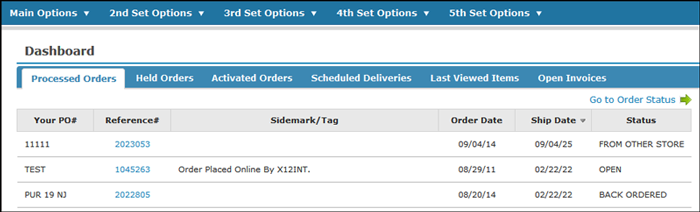
The dashboard allows you to quickly check the following:
- Processed Orders - this includes both open and invoiced orders. A running list of the last 250 orders is displayed.
- Unprocessed Orders - these are reference numbers not yet processed into orders (e.g. quotes and unconfirmed orders). A running list of 250 orders is displayed.
- Scheduled Deliveries - these are orders that have ship vias codes other than will call WC. A running list of the last 250 orders is displayed. Ship Via Codes are established and maintained within the Classifications Codes File. The field that controls whether or not an order appears in the Scheduled Deliveries box is Does This Ship Via Code Represent a Pick Up or Will Call?
- Last Viewed Items - these are items where the item information window has been accessed. A rolling list of the last 50 items viewed is displayed. If a user has Order Entry access, via the Allow Order Entry Access setting on screen 1 of the User Settings File (D24 2), the items can be ordered directly from this window.
- Open Invoices - these are open AR invoices where the balance is not equal to zero. Users have to be given permission to click on invoices via the Allow Display of Prices and Invoices setting on Screen 3 of the User/Global settings. If this setting is not activated, the invoices will not appear as clickable links.