
Voiding an out of period Check
These instructions are for Navigator Accounts Payable. For information on Accounts Payable in the Green Screen (AS400), click here.
- Open an Enter Invoices screen and enter the vendor/supplier information for the check that needs to be voided. Make sure the amount of the invoice is entered as 0.00.
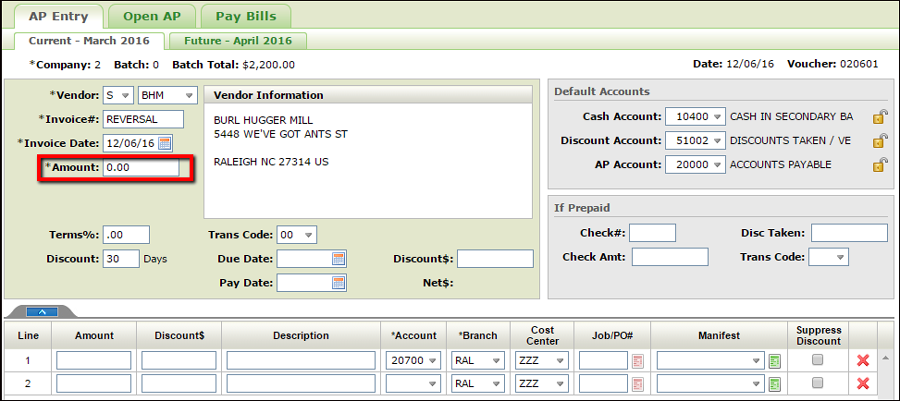
- Once you tab out of the Amount field you will receive an error at the bottom of the screen telling you that the invoice amount and the line amount cannot both be zero. For the purposes of this process you can ignore the error completely.
- In the If Prepaid portion of the window:
- Enter WN in the Trans Code field.
- Enter the Check# that you want to void.
- Enter the amount of the check as a negative in the Check Amt field.
- If a discount was taken on the original check, that discount amount will need to be put in as a negative in the Disc Taken field.
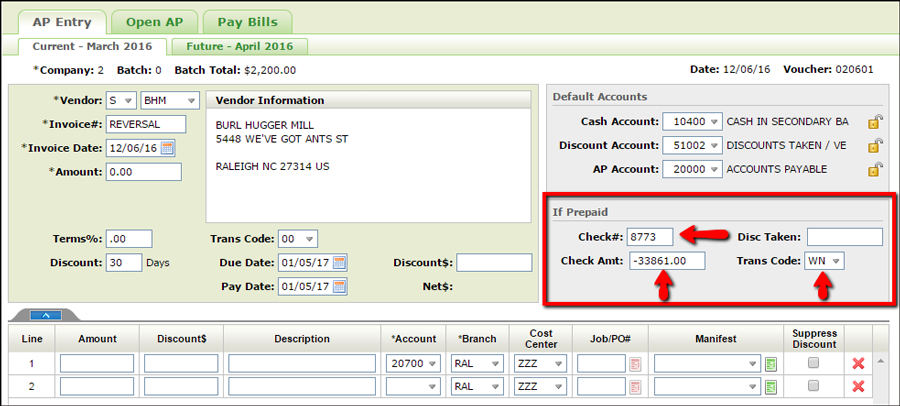
Tab out of the Trans Code field and the system will calculate. Now you can either click Finish so you can review the transaction or you can click Post Invoice. Once posted, the voucher used to void the check shows on the current month's ledger and you can cut the check again. The invoice number you use when voiding the check will be the invoice number that is displayed when it is paid out again. Below is a screen shot of what appears when you go into Pay Bills for that vendor to re-cut the check.
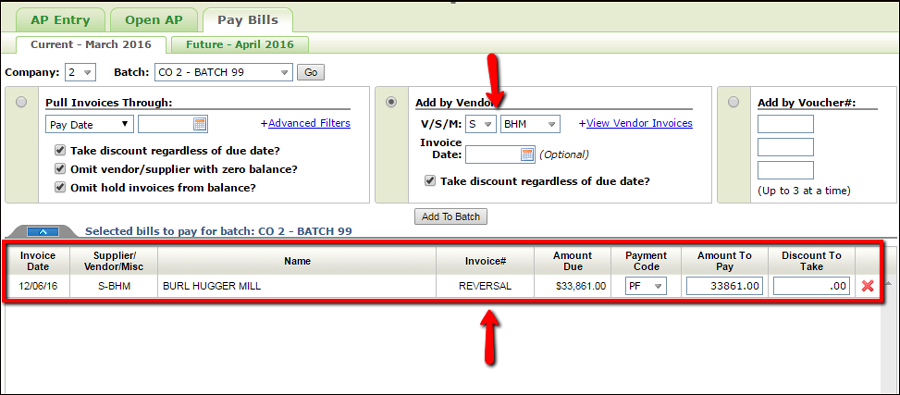
Print Checks like you normally would and the system will take care of the rest.