|
Need more info or you couldn't find what you were looking for, let us know by sending an email to: support@dancik.com.
Ordering Laminate Items Using the Laminate Grid
The Laminate grid automates and optimizes the selection and sizing of laminate products during order entry. The Laminate Grid finctionality has been present in the DES (green screen) for years, and now it has been added to Navigator.
Using the Laminate Grid in Navigator
Entering a Complete Laminate item Number
System Wide Setting - Laminate Automatic Cut Settings and Additional Options
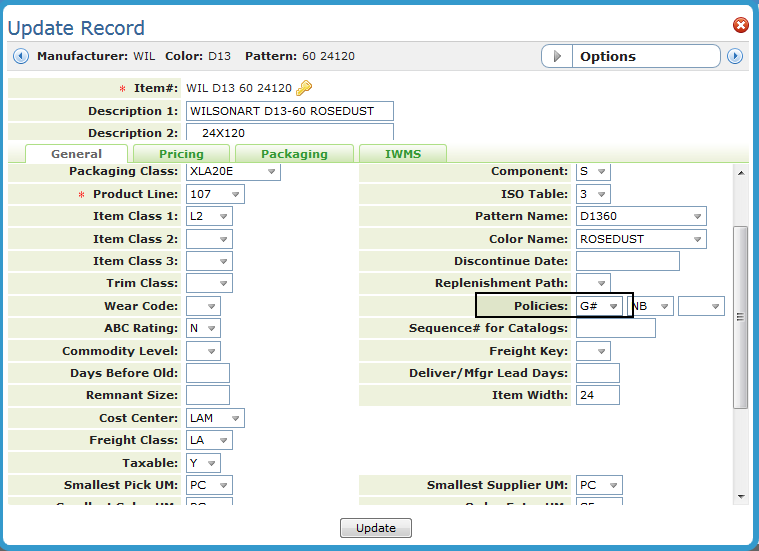
Laminate items are identified with a Policy Code of G#.
|
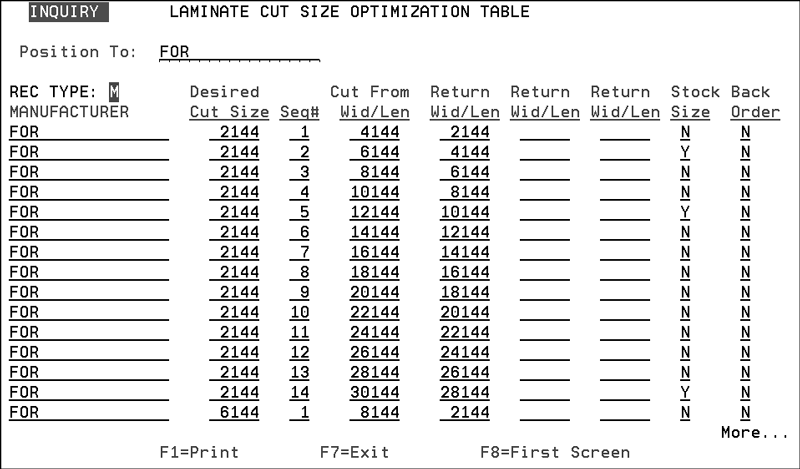
Laminates Cut Size Optimization Table - LAM 1
This option lets you establish the optimum cut sizes for your all of your laminate products. Use this table to alert a user to the size laminate they need to use to create a cut a specific size laminate item. It also lets them know how much product will be returned to stock. This table is only available in the green screen.
|
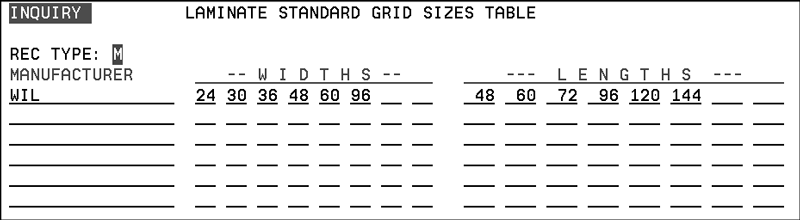
Standard Laminates Grid Size Table - LAM 2
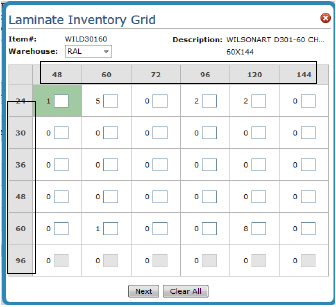
This table establishes the grid sizes, length and width, for each lamiante manufacturer.
|
These dimensions are used as the dimension headings for the Navigator Laminate Grid.
|
System Wide Setting - Laminate Automatic Cut Settings and Additional Options
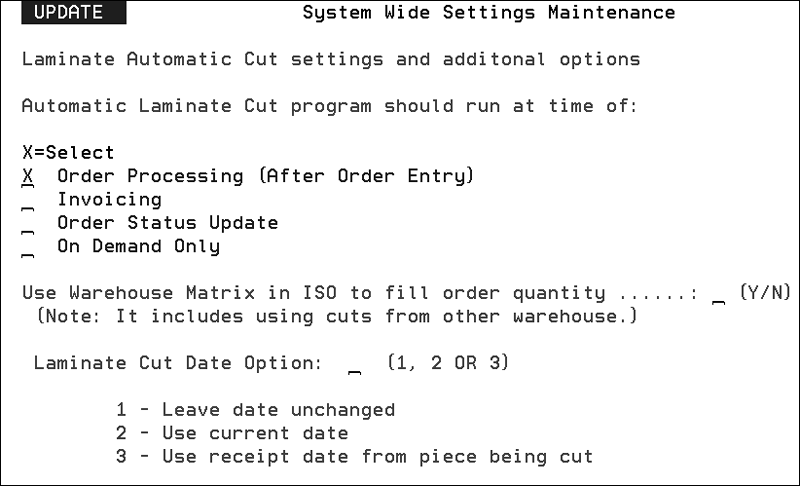
The first set of options control when the system makes the adjustments to onhand inventory after a laminate cut is requested. These options apply only to laminate orders in which a requested size is cut from another size.
The options are:
Order Processing - causes the system to adjust inventory on laminate cuts before the cut is physically made. The adjustments occur as soon as the order is processed. This option makes return pieces accessible quickly for other new orders, but has the disadvantage of putting the computer inventory out of balance with the physical inventory.
Invoicing - causes the system to adjust inventory for laminate cuts when invoices are processed. We recommend you select the Invoicing Option in addition to any other options as a fail-safe mechanism. This ensures the cut is updated when invoiced even if a previous step was missed.
Order Status Update - causes the system to adjust inventory for laminate cuts as the warehouse actually cuts the pieces. This is the most logical choice as it keeps physical inventory exactly in balance with the computer inventory. If you select this option, it is also recommended to select the Invoicing option. This ensures if the warehouse forgets to perform the status update, the cut adjustment is still made.
On Demand Only - This option does not automatically perform the cut adjustment. It merely indicates all cut adjustments are performed on demand only using the Perform Cut On Demand Option on the Laminate Menu Bar. We do not recommend this option.
|
Using the Laminate Grid in Navigator
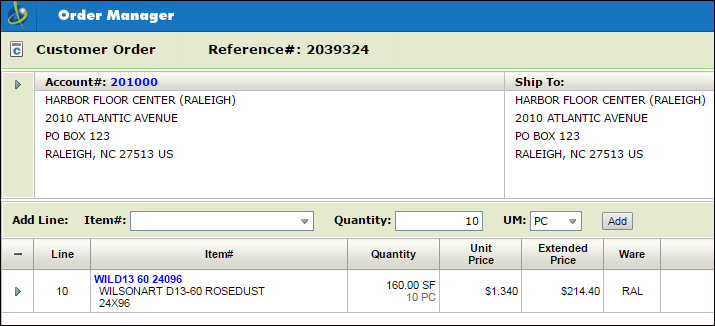
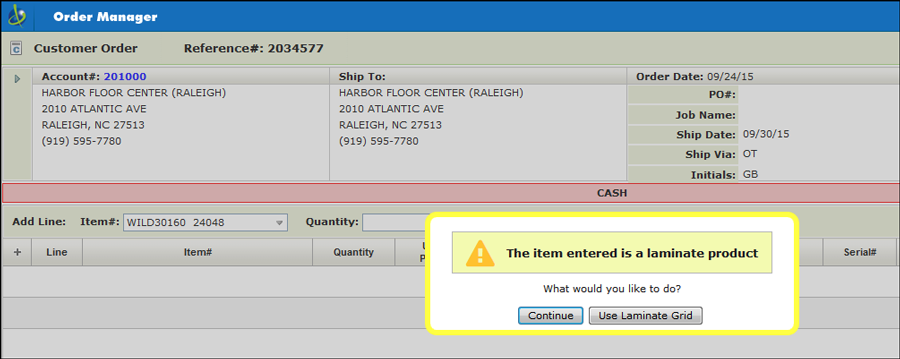
1. Access Navigator Order Management and enter a Laminate item. In this example, item number WILD30160 24048 is entered. Notice that there are two spaces between the main part of the item number WILD30160 and the dimensions of the laminate item 24048 (the first two characters “24” are the width and the last three “048” are the length).
2. Enter the quantity and click Add.
If a complete item number, which includes the dimensions, is entered, you are alerted that the item is a Laminate item and are asked if you want to use the Laminate grid.
|
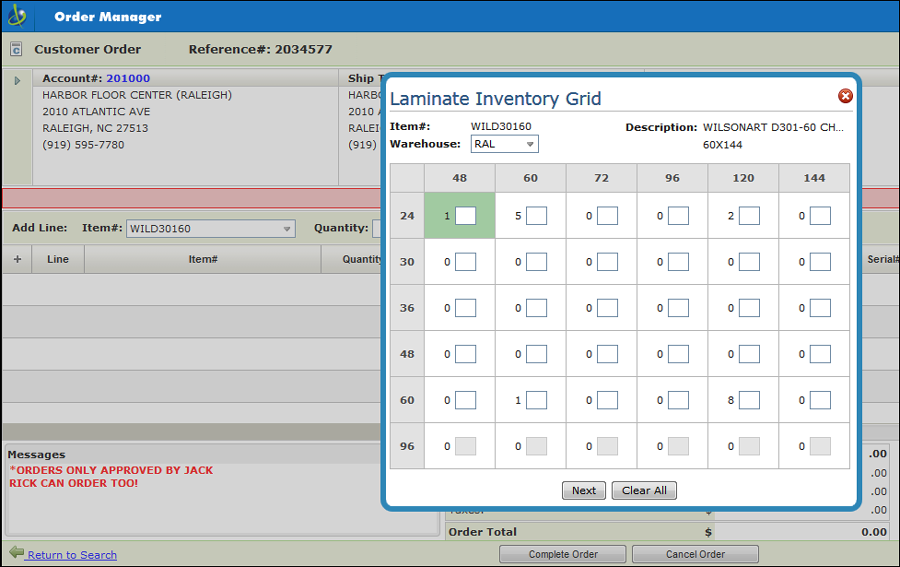
If a laminate item is entered without the dimesnsions, the laminate grid automaically appears.
|
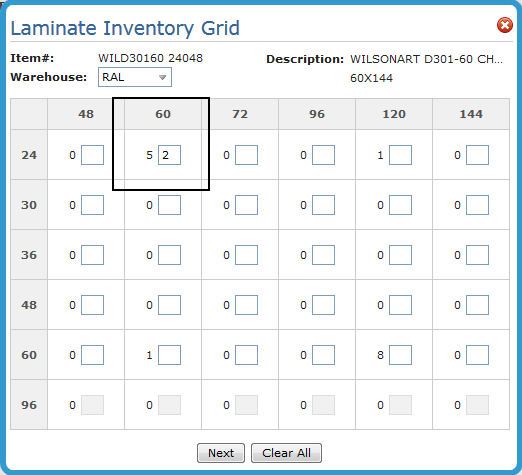
3. What the grid is showing is that the laminate item size being requested can be cut from several different sizes: 24x60, 60x60, 24x120 and 60x120.
The number to the left of the quantity entry box is the quantity available for that laminate size.
4. Click on the square in the grid that corresponds to the requested size and enter the quantity needed.
|
If you do not see the exact size you need, you can select bigger sizes and the system will calculate the cuts and even how much will be returned to stock.
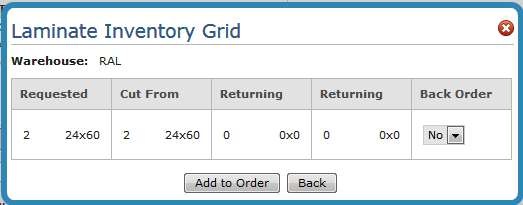
5 Click Next to confirm your selections.
|
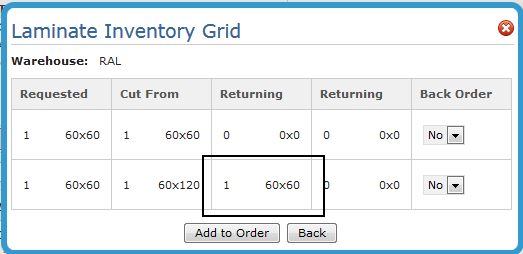
If the laminate item is being filled from a bigger size, the system lets you know how much inventory and its size is being returned to stock.
|
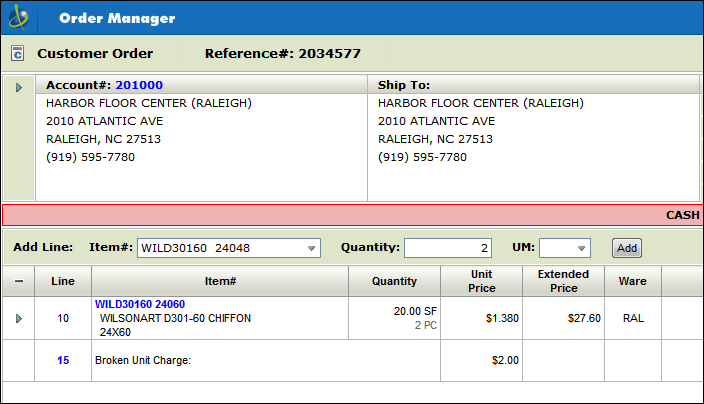
6. Click Add to Order to enter the laminate items on the order.
|
Entering a Complete Laminate item Number
If the item number is a complete laminate item number including dimensions, when Add is clicked the Laminate Cut Selection window appears.
Note: A complete laminate item includes the dimensions. When a complete item number is entered, a pop-up window appears that lists the inventory available for the item.
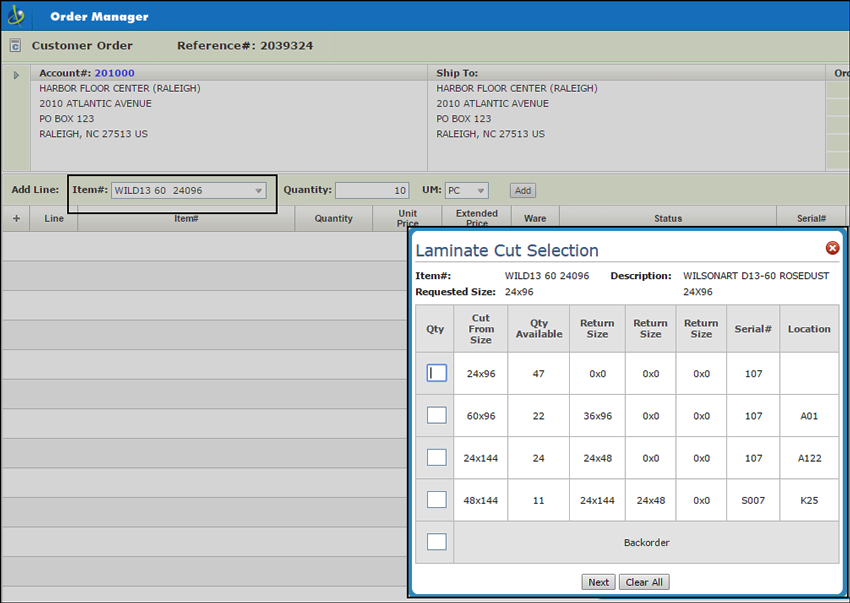
Note: When an incomplete item number (the dimensions are not included) is used in Order Entry the Laminate Grid window appears. This window allows you to select the dimensions for the laminate item.
The Laminate Cut Selection window shows the available inventory that can be used to fill the order requirement. Find a size that works and the quantity that you want.
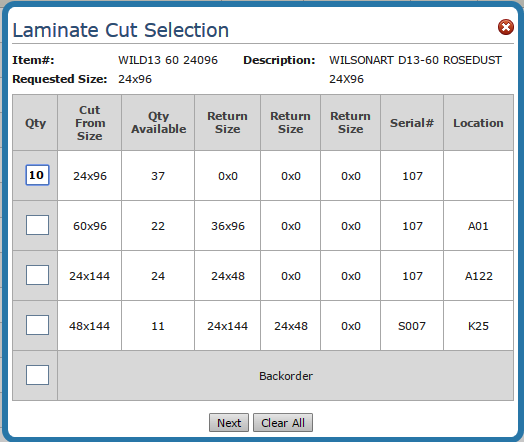
Click Next and confirm your selection on the window that appears.
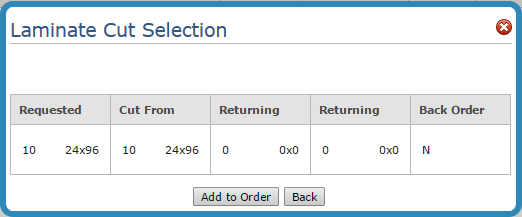
If everything looks correct, click Add to Order. You are returned back to Order Entry and your laminate item has been added.