Need more info or you couldn't find what
you were looking for, let us know by sending an email to: support@dancik.com.
Stock Keeping Unit (SKU) File - FIL 13
Overview
SKU File Profile
Screen
SKU File Inventory
Screen
Associated Files
Related FAQs
Overview
Stock Keeping Units (SKUs) are a combination of an item
number, lot number, and warehouse number. Do not confuse The SKU File
with the Item File. Each item can have many different SKUs because the
item can be stocked in multiple warehouses and come in multiple lot numbers.
An item might not have any SKUs. An item that had never been ordered or
received would not have an SKU record on the system. The SKU File is automatically
maintained by the system, although you can enter records manually. SKU
records are automatically set up by the receipts and adjustments programs.
You can also use the SKU File to set default bins or locations and to
establish SKU level reorder parameters.
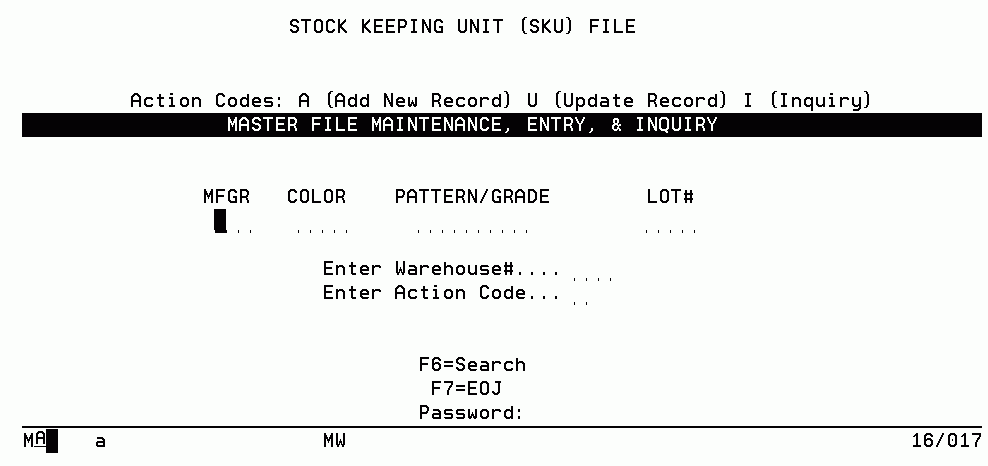
1. On
the main menu, select option 1 - File Maintenance
& Inquiry.
2. On
the File Maintenance & Inquiry screen, enter option 13
- Stock Keeping Unit File.
3. Enter
the item number of the SKU you want to inquire about, update, or add.
4. Enter
the Lot Number of the SKU, if applicable.
Do not confuse lot number with serial number or shade, although you can
use lot numbers for shades in some cases. If you use the serial number
feature, the lot number is usually left blank.
5. Enter
the Warehouse# of the SKU you want to
inquire about, update, or add.
6. Enter
Action Code A to add a new record,
U to update or change record, or
I or leave blank to inquire an
existing record.
7. Enter
the Password, if necessary.
SKU File Profile
Screen
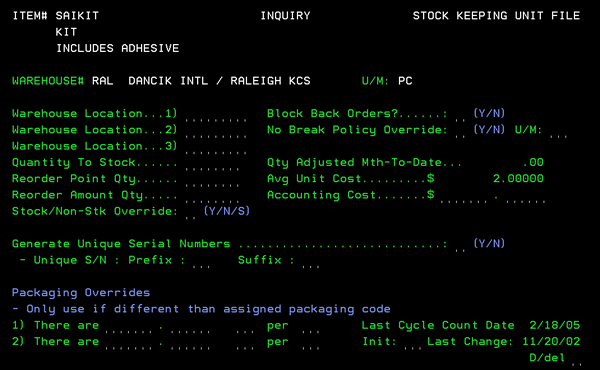
Field
Name |
Description/Instructions |
Warehouse Location 1) |
The
main (default) location in the warehouse for this SKU (eight
characters). Leave these location fields blank if you use
dynamic locating, in which items are located based on available
space rather than reserved locations. For serial numbered
items, limit the location to four characters because serial
numbered items use a four-character location.
The Laminate Cut Selection screen (accessed
through CUS 1) checks and then uses these locations to help
increase inventory accuracy by ensuring cut pieces are returned
to the correct location. |
Warehouse Location 2) |
Additional
location in the warehouse for this SKU. Leave this field blank
if using dynamic locations as described above. |
Warehouse Location 3) |
Additional
location in the warehouse for this SKU. Leave this field blank
if using dynamic locations as described above. |
Quantity
To Stock |
Optimum
quantity to keep onhand of this item at this warehouse. This
quantity overrides your entry in the related Product Line
File record for this SKU. Leave this field blank unless you
want to override the Product Line File entry. This quantity
is always expressed in the native unit of measure for this
item. |
Reorder
Point Quantity |
Quantity
below which a reorder should be generated. This quantity overrides
your entry in the related Product Line File record for this
SKU. Leave this field blank unless you want to override the
Product Line File entry. |
Reorder
Amount Quantity |
Quantity
that should be reordered when the reorder point is reached.
This quantity overrides your entry in the related Product
Line File record for this SKU. Leave this field blank unless
you want to override the Product Line File entry. |
Block
Back Orders? |
If
activated, this setting, directs Order Entry (whether the
order generation process be manual, ISO, or inbound CMS) to
reject the creation of a back order for this item at this
warehouse. Order Entry displays an appropriate message, and
CMS rejects the order if stock is not available instead of
back ordering.
The default for this setting is N (blank = N).
A Y
in this new field is the equivalent of the Item's Discontinue
Date being before today, except that this flag can be for
specific warehouses only, like discontinuing an item for specific
warehouses.
If this setting is activated, the system
will not backorder the item. Instead the following message
is displayed.
Backorder
cannot be placed for a discontinued item XXX XXXX X.
If a stocking matrix exists for the
item, the SKU file setting for the warehouse coded as the
replenishment warehouse is used to determine whether a back
order is allowed. The stocking matrix logic is used only when
company settings to Force Back Order to Stocking Matrix are
active.
The normal business case for this feature
is to manage the discontinuation of products in a multi-warehouse
environment. For example, you may have branches that are out
of stock in an item that is being discontinued and you prefer
that they no longer sell the product except for what is left
in inventory. However, there may be other warehouses that
due to the proximity to the supplier or other factors, may
still be allowed to back order the product. If you are in
a multi-company environment, then it is possible the warehouse
belongs to a company that may need to halt back orders prior
to another company. |
Override
Fields - These override fields enable you to establish which
products are stocked in which warehouse, rather than just
a global stock/non-stock flag. You may also have different
“no break” policies in different warehouses. An item could
allow broken cartons in one warehouse, and require full cartons
in another warehouse. Order Entry and ISO will adhere to these
warehouse level rules. |
Stock/Non-Stk Override |
Y (stock), N (non-stock)
S (special order) in the Stock/Non-Stock Override Field overrides
the Item File Inventory Flag for the purpose of reordering.
Leave this field blank if the Item File inventory flag applies
to all warehouses. Use this field only when one or more warehouses
deviate from the overall status of the item. For example,
if you stock an item in all but one warehouse, the Item File
Inventory Flag should be set to Y,
and the SKU File Flag set to N in
the one warehouse. Other warehouse SKU entries should be left
blank.
For example, if the item file inventory
code has a value of "N"( non-stock), but the SKU
file for the same item for warehouse ABC has a override
value of "Y" (stock), this item will be treated
as a stock when a reorder report is run for this SKU/warehouse.
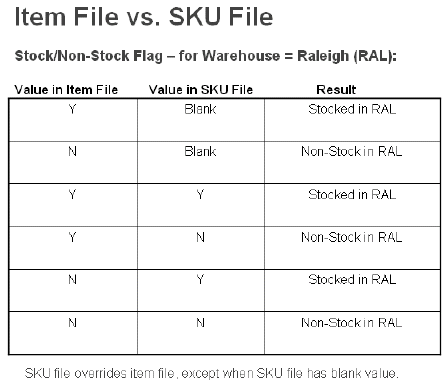
This chart shows how programs will interpret
the stock/non-stock flags.
|
No
Break Policy Override |
Enter
“Y” if the regular NB policy
in the ITEM File should be overridden at this warehouse. If
you enter Y, and you DO
NOT enter a unit of measure in the next field, then the NB
policy of the ITEM file will be ignored at this warehouse.
If you enter Y, and you
enter a unit of measure, then the NB policy uses this unit
of measure instead of the Smallest
Sales U/M in the item file, for this warehouse.
It is recommended that you activate
this field for dimensional products such as ceramic tile.
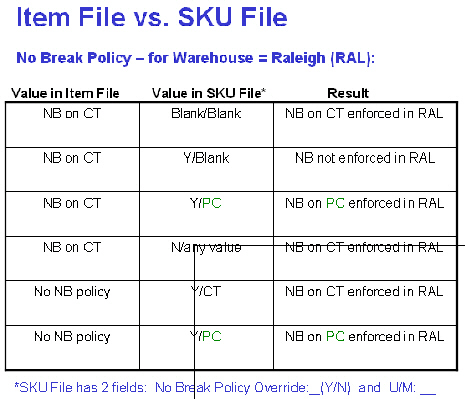
The following chart shows how you should
set the NB policy fields in the Item and SKU files in order
to get the results you need in each warehouse.
|
U/M
Override |
This
field contains the U/M that is treated as the Smallest
Sales U/M for this item, at this warehouse only
- if the previous field = Y.
If you enter Y in
previous field, and you DO NOT enter a unit of measure here,
then the NB policy of the ITEM file will be ignored at this
warehouse. If you enter Y,
and you enter a unit of measure, then the NB policy will use
this unit of measure instead of the “Smallest Sales” U/M in
the item file, for this warehouse. |
Generate
Unique Serial Numbers |
Enter
a Y to generate unique serial numbers for this SKU File. The
system automatically assigns a unique six-digit serial number
for this the SKU File. .
The Prefix and Suffix options allow
you to assign a one or two character prefix and suffix to
automatically generated serial numbers . Unique serial numbers
can aid in identification of inventory transactions, and improve
bar code scanning processes. For example if the Prefix is
set to A and the Suffix is set to R, unique serial numbers
will be generated for all items included in this SKU file.
The format of the serial numbers will be: AnnnnnnR - Where
nnnnnn represents a unique six-digit number. |
Packaging
Overrides |
Use
these fields only if the packaging information for this particular
SKU is different from the Packaging File for this item. For
example, enter CT per PA if
the cartons per pallet is different from other lot numbers
of the same item. These fields will temporarily add to or
replace entries in the normal packaging fields when this SKU
is processed. |
Qty Adjusted Mth-To-Date |
You
cannot update this field. It displays the quantity adjusted
via cycle counts or adjustments in the current month. |
Avg. Unit Cost |
You
cannot update this field. It displays the current average
unit cost for this SKU (this item/lot number at this warehouse
only). If this is a serial numbered item, this is the average
cost of all serial numbers in this warehouse or lot number
for this item. |
Accounting Cost |
The
value in this field overrides the accounting cost entered
in the Cost File. Accounting cost should be used for recording
LIFO costs, but can be used to store any alternative costs.
These costs are controlled by the accounting department, and
are never automatically updated by the system. These costs
can be used by the Inventory Value reports. |
Last Cycle Count Date |
You
cannot update this field. The date shown here is the date
on which the last cycle count was processed for this SKU.
This field is updated by the Cycle Count system, or when an
adjustment is entered with code C for cycle count. |
Init |
Enter
your initials here when you have finished updating or adding
this record. |
Last Change |
This
field is not accessible. The date shown here is the date on
which the last change was made to any of the input fields
displayed on the SKU Profile screen for this record. |
The following table describes the function keys for
this screen.
Function
Key |
Description |
F1 |
Go
to the next SKU file record without going back to the first
screen. This is helpful if you are updating or viewing record
by record within the SKU File. Press F1 to
enter the current screen and then display the next record
in the SKU File. |
F3 |
Go
to the SKU File SKU File Inventory Screen. |
F6 |
The
SKU Search Screen is designed to quickly view reorder and
location parameters assigned at the SKU level. The search
may be started from any point by entering all or part of an
item number. Leave the Warehouse field blank to display all
warehouses. Enter a specific warehouse in order to limit the
search to that warehouse.
You can use this screen to update all
underlined fields, assuming you have entered action code U
for update, and the appropriate password. You can only update
the underlined fields by entering or clearing values and pressing
Enter. |
F7 |
End
the job and return to the File Maintenance screen . |
F8 |
Return
to the SKU File Entry screen. |
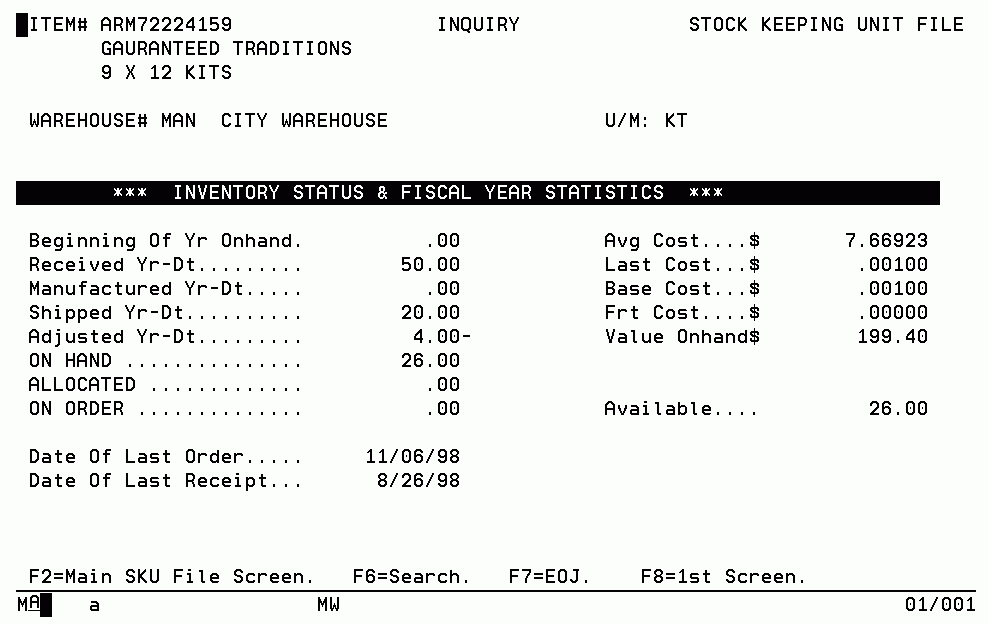
Access the SKU File Inventory screen by pressing F3 on the SKU File Profile Screen.
Field
Name |
Description/Instructions |
Beginning of Yr Onhand |
Amount
available at the beginning of the year. |
Received Yr-Dt |
Amount
received year to date. Yr-Dt always refers to the current
fiscal year-to-date. |
Manufactured Yr-Dt |
Amount
manufactured year to date. Yr-Dt always refers to the current
fiscal year-to-date. Manufactured Yr-Dt is entered only if
your company manufactured this SKU and you have an interface
to your manufacturing program. |
Shipped Yr-Dt |
Amount
shipped year to date. Yr-Dt always refers to the current fiscal
year-to-date. Shipped indicates invoiced. |
Shipped Yr-Dt |
Amount
shipped year to date. Yr-Dt always refers to the current fiscal
year-to-date. Shipped indicates invoiced. |
Adjusted Yr-Dt |
Amount
adjusted year to date. Yr-Dt always refers to the current
fiscal year-to-date. Adjusted Yr-Dt displays a positive number
if it increased inventory, and a negative number if it decreased
inventory. |
ON HAND |
The
quantity physically existing onhand for this item in this
warehouse. |
ALLOCATED |
Allocated
equals the quantity reserved on customer orders. Temporary
holds are not included in this figure. |
ON ORDER |
On
order is the quantity scheduled (on purchase orders). |
Date of Last Order |
The
date of the last customer order for this item at this warehouse. |
Date of Last Receipt |
The
date of the last receipt into inventory for this item at this
warehouse. |
Avg. Cost |
Average
cost is the average unit cost of the onhand quantity for this
SKU. A true weighted average is used. If this is a serial
numbered item, then the average cost is for all serial numbers
onhand in the warehouse and lot for this item. Do not confuse
lot with serial number; multiple serial numbers can be in
one lot number. |
Last Cost |
Last
cost is the unit cost of the last receipt for the SKU. It
is the last landed cost. |
Base Cost |
Base
cost is the base (material) portion of the last cost. |
Frt Cost |
Freight
cost is the freight portion of the last cost. |
Value Onhand |
Value
onhand indicates average cost multiplied by quantity onhand.
|
Available |
Available
equals the quantity onhand less the quantity allocated. |
Associated Files
Navigator
Stock Keeping Unit File
Purge/List
Inactive Shade/Lot/Bundles - SYS 115
Mass
Update SKU File Accounting Costs - SYS 509
Automatically
Create SKU File Records - SYS 609
Remove
Inventory History & SKU Records for Inactive SKUs - SYS 913
Related FAQs
What
is controlled by the Stock/Non-Stk Override Setting in the SKU FIle?
Report on SKU Avg. selling price